Helios Rust Console Bot Documentation
Rust Console Killfeed in Discord
Route Rust Console kills to Discord channels from the Helios dashboard or with /dcfeed.
- Last reviewed
- Maintained by
- Helios RCE
This page is for Discord channel routing — sending kills to a text channel in your Discord. For the messages players see in Rust chat, see In-game killfeed templates.
The fastest way to set this up is the Killfeed module in the Helios dashboard. Everything here can still be done with /dcfeed in Discord, covered at the bottom of this page.
Open the Discord channels tab
- Go to the Helios dashboard and sign in with Discord.
- Find your server under Connected game servers and click Manage Server.
- In the Modules sidebar, choose Killfeed, then select the Discord Channels tab.
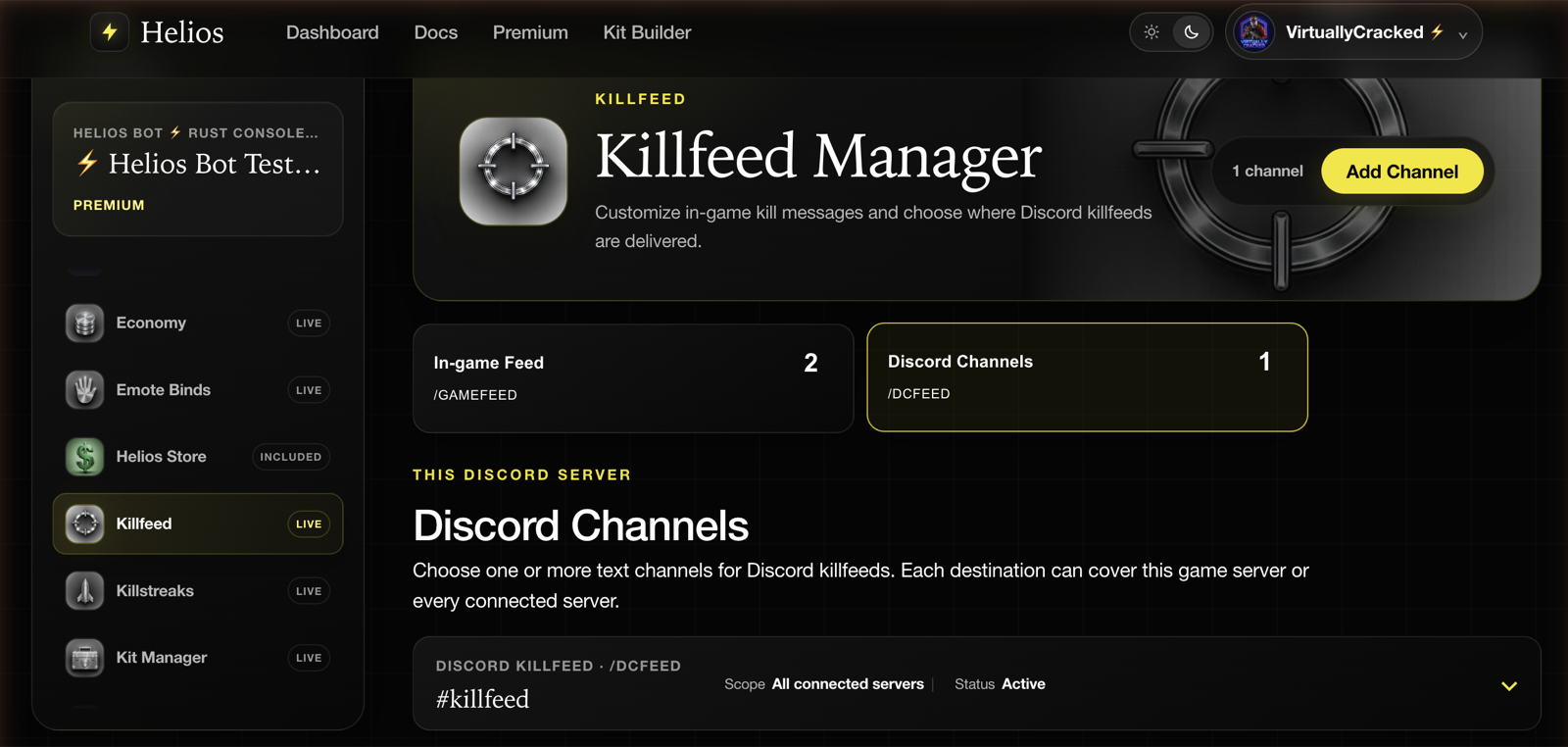
Every destination is listed with the channel it posts to, its Scope, and its Status. Scope is what to check first when a channel is quiet or noisy: All connected servers means that one channel receives kills from every server you have connected, while This game server keeps it to one.
Add a channel
Click Add Channel in the module header.
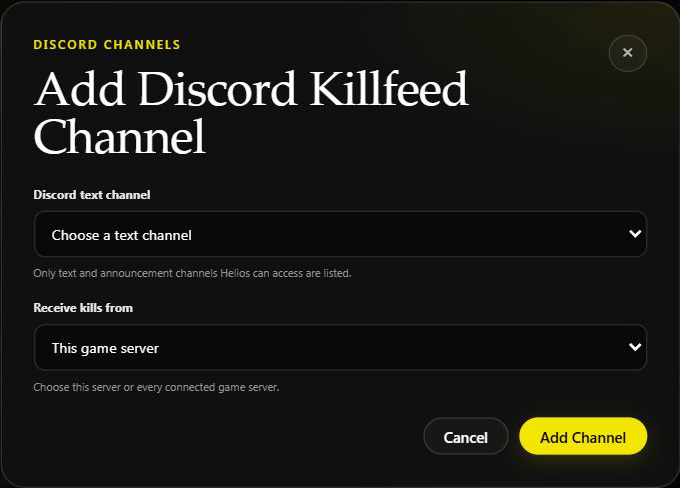
- Discord text channel — only text and announcement channels Helios can actually access are listed. If a channel is missing, check its type and Helios’s access, then refresh the dashboard.
- Receive kills from — this game server, or every connected game server.
Click Add Channel. The destination appears in the list and the channel count in the header goes up.
The new destination normally starts receiving feed messages within about a minute. You can Pause a destination for a temporary quiet period, Resume it later, or Remove it when the channel should no longer receive the feed.
INFONote
The channel picker only showing accessible channels is useful diagnostically. If a channel is absent from the dropdown, fix Helios's access to it before doing anything else — adding it another way will still produce a silent channel.
Related feeds
Open Discord → Feeds to manage Player Join and Admin Feed destinations too. The live player-count channel is under Overview → Live Player Count Channel. Discord alternatives:
/dcplayerfeed add|remove|list
/adminfeed add|remove|list
/set online-channel
/dcplayerfeedroutes player join and leave events./adminfeedroutes staff actions and is premium./set online-channelmaintains a live player-count channel.
Tips
- Keep the public killfeed separate from staff-only feeds. Mixing them makes moderation history hard to read later.
- Use dedicated channels rather than posting into general chat — a busy server will bury conversation.
- If you run several game servers, decide deliberately between one shared channel and one channel per server. Scope is set per destination, so you can mix both.
- Audit destinations after any Discord restructure, because deleted channels or changed permissions can stop delivery. Renaming a channel does not change its destination ID.
Common issues
The channel is added but stays silent
Check the game server connection, destination scope, and Helios’s send/embed permissions. Then check the feed after a new kill.
The channel I want is not in the dropdown
Helios cannot see it. Only text and announcement channels it has access to are listed — fix access first.
One channel is getting kills from the wrong server
Check for an All connected servers destination. The expanded card has Pause and Remove, not a scope editor. Add a destination for This game server, then pause or remove the unwanted shared destination. A shared destination affects every connected server in this Discord community, so check who uses it before changing it.
I changed a channel but nothing happened right away
Give Helios about a minute, then check the next new kill. Existing messages are not copied into a newly added channel.
PvE deaths are missing
Check Include PvE kills on the In-game Feed tab, plus EvE in Feed in /settings server server:"<SERVER>". With PvE on and EvE off, players killing recognized scientists can appear, but other non-player events stay hidden. Both switches must be on for recognized animal and environmental deaths. See the feed settings table.
Doing the same thing in Discord
/dcfeed list
/dcfeed add channel:#killfeed server:"<SERVER>"
/dcfeed remove channel:#killfeed server:"<SERVER>"
Requirements are the same either way: a connected server, Manage Server permission in Discord, and Helios able to post in the target channel.
Select the actual channel and game server in Discord's command fields; the example names are not values to copy unchanged. Leaving server: out of add creates a shared destination.
WARNRemoving without a server removes more
/dcfeed remove channel:#killfeed removes all killfeed configurations for that channel, including server-only ones. Include server: to remove only that server's destination. It does not delete the Discord channel or its old messages.
This is different from /dcplayerfeed remove: leaving its server blank removes the shared player-feed destination, not every server-only player-feed destination.
TIPTip
The dashboard and /dcfeed read and write the same destinations. You can add a channel in either place and review or pause it on the dashboard.