Helios Rust Console Bot Documentation
Helios Setup Guide for Rust Console Edition
Connect your Rust Console server from the dashboard, choose setup channels, and check that Helios is ready.
- Last reviewed
- Maintained by
- Helios RCE
Connect your Rust Console game server to Helios, then choose the features you want your community to use.
Before you start
You need Manage Server or Administrator permission in your Discord community, or to be its owner. Have your game server's public IP, RCON port, and RCON password ready from G-Portal or Nitrado.
The IP and port are separate fields. Use the RCON password, not your Discord or hosting-account password. Keep these details private.
1. Open Connect Server
Sign in at the dashboard and choose Connect Server. You can also open the Premium page and choose Add Server under Don't See Your Server? Add it Here.
2. Choose your Discord community
Select the Discord server that should manage this game server.
If Helios is missing, choose Invite Helios & Return and complete the Discord invite. Back on Helios, use I've invited Helios — Check again if needed.
If your community is missing from the list, check your Discord permissions and refresh your Discord sign-in.
3. Enter the connection details
| Field | What to enter |
|---|---|
| Game server name | A clear name, such as EU Main. |
| Public server IP | The IP from your hosting panel, without a port. |
| RCON port | Your server's RCON port, which may differ from the game port. |
| RCON password | The RCON password from your host. |
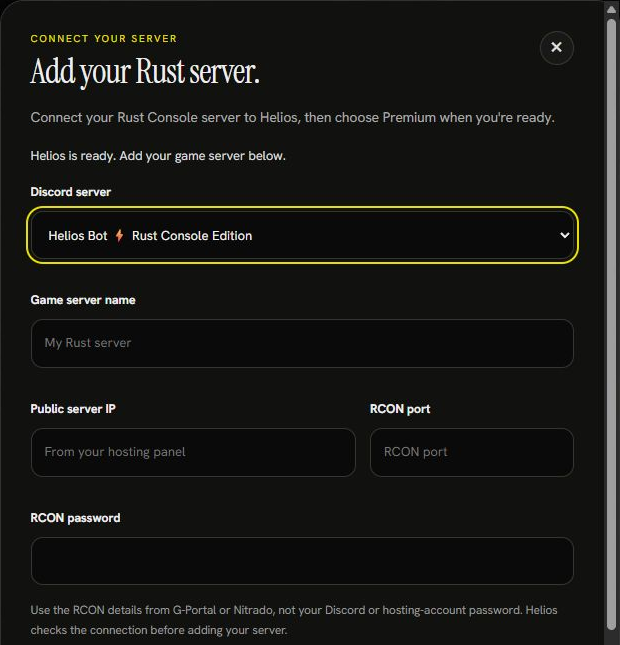
4. Choose optional channels
Tick only the channels you want Helios to create:
- Command channel: private space for admin commands.
- Admin Feed: private server activity feed.
- Killfeed: public player kills.
- Player Feed: public joins and leaves.
You can leave all four unchecked and set up channels later with /setup. If Helios cannot create channels, check its Manage Channels and Manage Roles permissions.
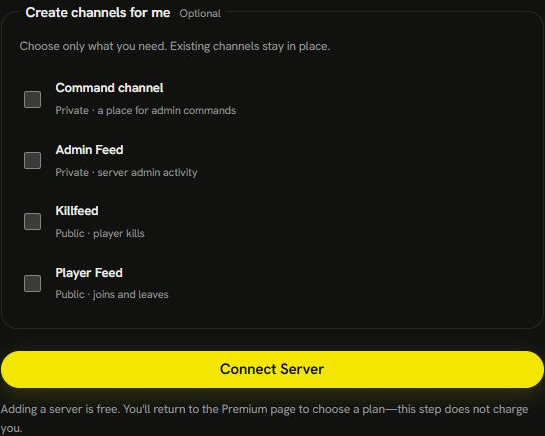
5. Connect and check
Choose Connect Server and wait for the result. Helios checks the connection before adding it.
Adding a server is free. You return to the Premium page afterward; connecting does not purchase a subscription. Choose a plan if you want Premium, or return to the dashboard.
Open Manage Server → Overview and check the connection and live server information. You can also run /server list in Discord and test with:
/cmd send command:"fps" server:"<YOUR SERVER>"
If the connection check fails, recheck the RCON details and make sure your game server is running. If a request times out, refresh your connected-server list before adding it again.
What to set up next
- Review Discord roles and channels.
- Choose your Server Settings.
- Use dashboard search to find a feature.
- Follow Manage Connected Servers when you need to edit, pause, or copy a connection.
Prefer Discord?
Run /server add in a private admin channel and fill in the server name, IP, RCON port, and RCON password. Then use /setup for channels and feeds, and /server list to review the connection.
The video follows the Discord setup route. The website steps above provide the current dashboard alternative.