Helios Rust Console Bot Documentation
Clans
Full guide to the Helios clan system — the /clan panel, every button, ranks, and admin controls.
- Last reviewed
- Maintained by
- Helios RCE
Overview
Clans let players group up with a name, a 3-letter tag, a color, and optional Discord roles and channels. Players manage everything through the /clan panel; admins configure the system with /settings clan.
Clans are a premium feature.
Use the dashboard
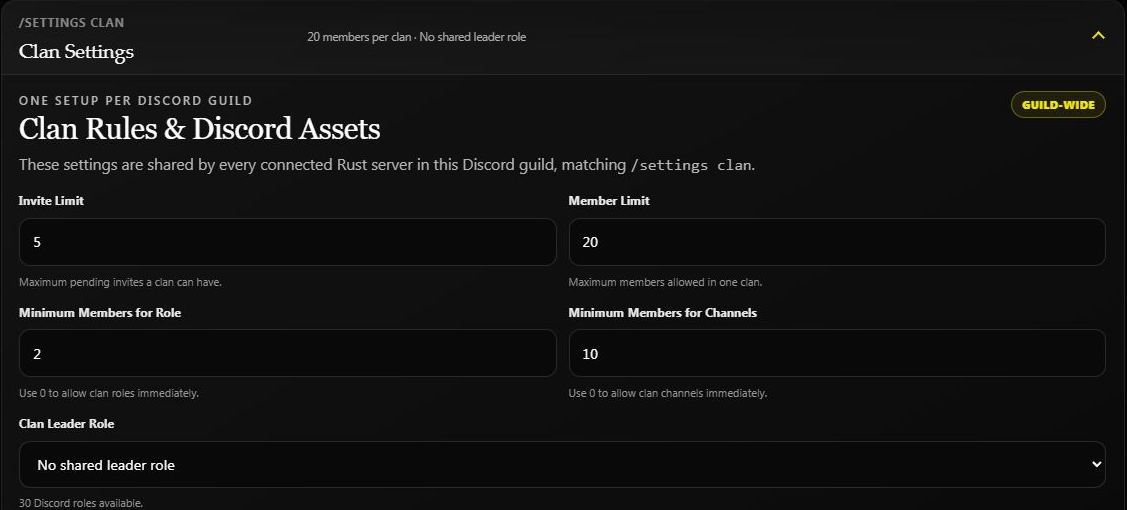
Open Clans & Teams → Clan Settings. Set invite and member limits, the minimum members for roles and channels, and any shared Clan Leader role. Choose nickname, feed-tag, and role options, then click Save Clan Settings.
These settings apply across your Discord community. All Clans lets you search by name, tag, member, rank, or Discord asset status. Rust Teams shows tracked teams for the selected game server; a Helios clan and a Rust team are different memberships.
Example: Allow eight clan members, but require three before creating a clan role or channels. A value of 0 allows the corresponding asset immediately.
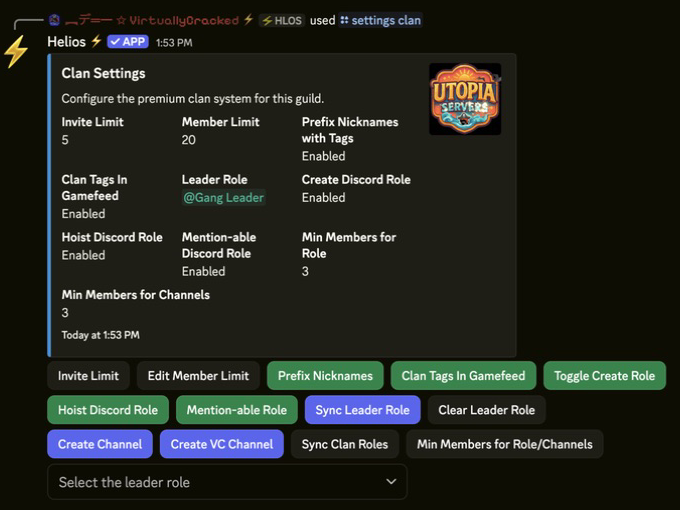
Players manage their clan with /clan. Channel creation and clan cleanup controls are explained in /settings clan. Helios needs the relevant Discord role/channel permissions, and its role must be high enough to manage the chosen roles and nicknames.
Commands
/clan                 # player panel — create, join, and manage your clan
/clans                # browse clan members, PvP kills, deaths, and K/D
/settings clan        # admin panel — limits, roles, channels
/player disband-clan  # admin — force-disband any clan
The /clan Panel
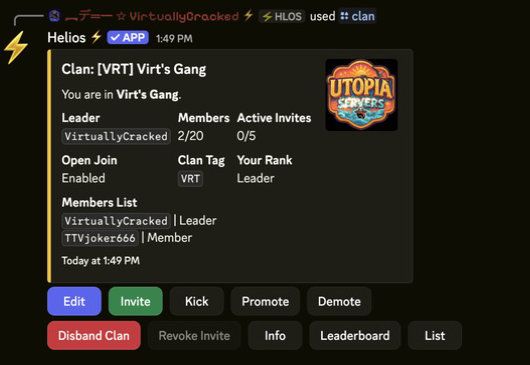
Run /clan to open the panel. The buttons you see depend on whether you're in a clan and your rank.
Not in a clan
The panel shows your pending invites, the open clans you can join, and the guild's member/invite limits.
| Button | What it does |
|---|---|
| Create One | Opens the clan creation draft — set a name, 3-letter tag, and color, then click Create |
| Join Open Clan | Join a clan that has enabled Open Join, no invite needed |
| Accept Invite | Accept one of your pending clan invites (grayed out if you have none) |
| Reject Invite | Decline a pending invite |
| Info | Look up any clan's details |
| Leaderboard | Top 10 clans with PvP kills, ranked by kills |
| List | Browse every clan's members and PvP totals, with page controls |
In a clan (member)
| Button | What it does |
|---|---|
| Leave | Leave your current clan |
| Info / Leaderboard / List | Same lookups as above |
| Invite | Invite a player — shown only for Officer rank and above |
In a clan (leader)
Leaders get the full management row:
| Button | What it does |
|---|---|
| Edit | Rename the clan, change its tag or color, and toggle Open Join (lets anyone join without an invite) |
| Invite | Send a clan invite to a player |
| Kick | Remove a member from the clan |
| Promote | Raise a member's rank |
| Demote | Lower a member's rank |
| Disband Clan | Permanently delete the clan (asks for confirmation) |
| Revoke Invite | Cancel a pending invite (grayed out if none are open) |
Clan Ranks
| Rank | Can invite | Can manage |
|---|---|---|
| Member | No | No |
| Officer | Yes | No |
| Co-Leader | Yes | No |
| Leader | Yes | Yes — full Edit/Kick/Promote/Demote/Disband controls |
Clan kills, deaths, and K/D
Run /clans to open the community's clan list directly, or choose List in /clan. The list shows each clan's tag, member count, PvP kills, PvP deaths, and K/D. Previous Page and Next Page browse longer lists; Back returns to your clan panel. Only the person who opened the list can use its buttons.
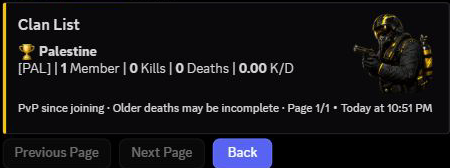
This is an existing community clan, not a clan created for the guide. Its zero totals are real; no combat result was fabricated.
The numbers count PvP activity since the current members joined their clan, across this Discord community's connected game servers. They do not add every member's lifetime stats, and PvE kills do not count. A member must have a linked game account for Helios to match their activity. Membership changes can change the totals: leaving removes that member's contribution, and rejoining starts a new membership period.
K/D means kills divided by deaths. When deaths are zero, Helios divides by 1 so the result stays readable. The list and Leaderboard are sorted by kills, not K/D. The leaderboard shows up to 10 clans with at least one kill; the full list also includes clans with no kills yet. Your own /clan panel shows Total Kills, Total Deaths, and K/D too.
The footer warns that older deaths may be incomplete. If deaths or K/D say Unavailable, those figures are not available; do not treat that as zero deaths. These clan totals are separate from a player's stats, Battle Pass progress, and Rust team membership.
Creating a Clan
- Run
/clanand click Create One. - Click Name and enter a clan name (3–32 characters).
- Click 3 Letter Tag and enter a tag (exactly 3 characters).
- Pick a clan color from the dropdown — this is also used for the clan's Discord role if role creation is enabled.
- Click Create. You become the clan's Leader.
Admin Controls
/settings clancontrols invite/member limits, nickname prefixes, gamefeed tags, clan Discord roles and channels, and the leader role. Every button is explained in the /settings clan guide.
/player disband-clanforce-disbands any clan by tag or name (autocomplete supported) — for moderation cases where the leader is unavailable.
Notes
- Clans are premium-gated — the panel opens but actions fail if premium lapses.
- Clan names and tags are filtered against a Discovery-unsafe word list.
- If Prefix Nicknames is on, members' Discord nicknames get the clan tag automatically; if Clan Tags In Gamefeed is on, tags also show in the in-game kill feed.
- Panel buttons are locked to whoever opened the panel — each player should run
/clanthemselves.