Helios Rust Console Bot Documentation
Player Tools
Find linked players, review activity and balance logs, grant support rewards, and reset a specific cooldown from the dashboard.
- Last reviewed
- Tested on
- Helios Bot Testing dashboard
- Maintained by
- Helios RCE
Handle common player-support requests from one dashboard page: find the right account, check its history, and make a focused adjustment. Premium is required for Player Tools.
Use this as a support tool, not a shortcut: check the linked account and its logs before giving, taking, or resetting anything. The dashboard always asks you to confirm a change before it runs.
Additional player support commands
- Inspecting Player Bag Items explains
/player inventory user:@Player, paging, and permanent removal of a complete stored entry. This is the bot inventory, not a live search of a Rust backpack. - Restoring Stats After a Gamertag Change explains
/player restore-stats user:@Player, automatic relink history, identity checks, and what can be recovered. - Temporary Bans and Early Unbans covers server-specific Game, ORP, and TP Home restrictions, queued requests, and end times.
For a missing reward, check the player's bag and delivery history before issuing another copy. If they changed platforms or gamertags, repair the link before retrying an online-only action.
Find the right player
- Open the dashboard, choose Manage Server → Player Tools.
- Expand Linked Players and use Find a linked player.
- Open the matching player and check their gamertag, platform, and Discord ID.
- Review Selected Server for activity on the game server you chose.
The Link Player button is also here when the Discord member has not linked their game account yet. Do not create a second link for someone who is already listed; open their existing player record first.
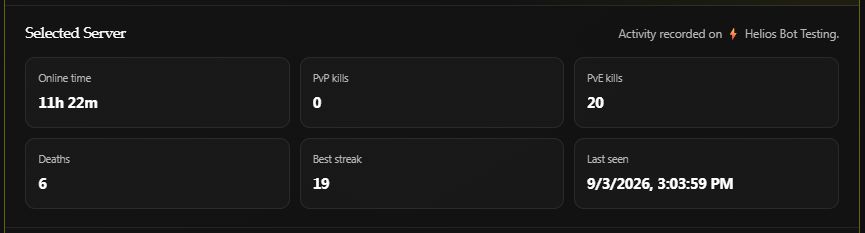
Recorded activity for the test account on Helios Bot Testing. Last seen is historical activity, not proof that the player is online now.
Choose the section you need
Click a section heading to open or close it. Selected Server starts open; the other sections stay compact until you need them. Under Player Management, open the individual action, such as Give Money, to see its fields.
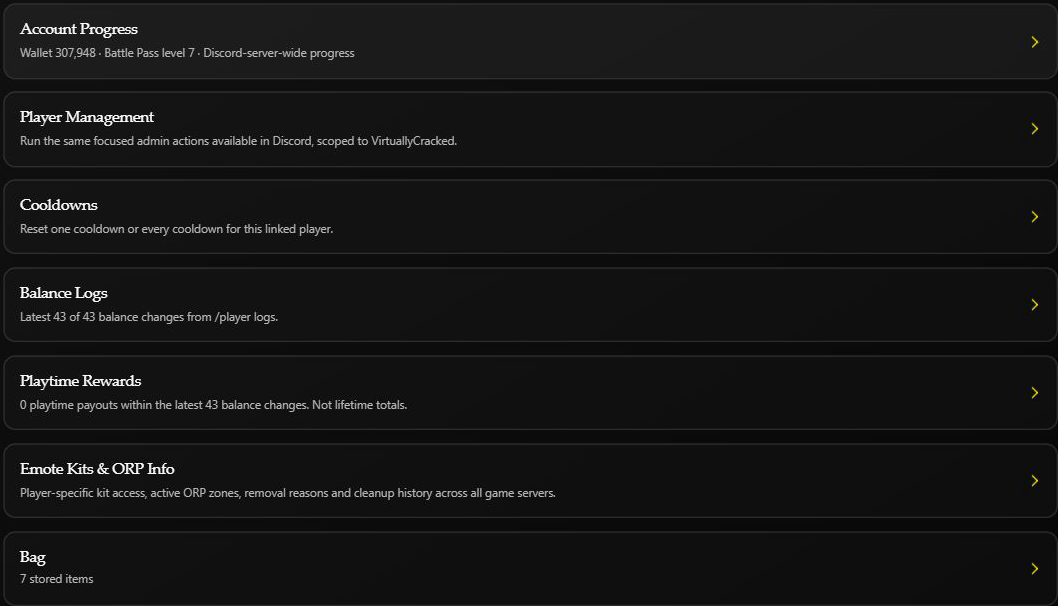
Account Progress separates four kinds of information:
- Economy: wallet, safe pocket, combined balance, and when the balance changed.
- Battle Pass: level, XP, completed challenges, claimed rewards, and Battle Pass activity.
- Activity Across Game Servers: recorded playtime and combat activity across this Discord community's connected game servers.
- Linked Account: platform, link date, clan, bag count, and active bans on the selected server.
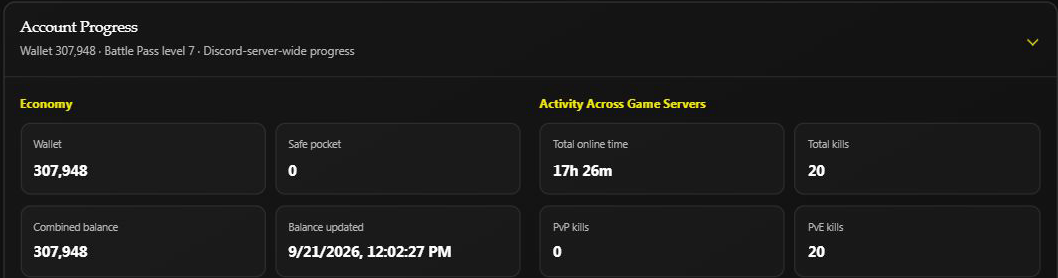
Battle Pass activity and server activity can differ because they are separate records with different reset rules. Use Selected Server for a question about one game server, not the combined totals.
Check balance and playtime history
Balance Logs loads up to the latest 200 balance changes, with 10 entries per page. Choose Older or Newer to move through them. The heading tells you how many changes are loaded and how many exist in total. You can also open /player logs in Discord.
Playtime Rewards shows only playtime payouts found within those loaded balance changes. It is not a lifetime payout total. An empty list does not prove the player has never received a playtime reward; an older payout may be outside the loaded history.
Check a missing kit or ORP
- Open Emote Kits & ORP Info.
- Choose Load Player Diagnostics.
- Expand Emote Kits, Active ORP, or ORP Removal & Cleanup History.
- Use Previous and Next if there are more than 10 records.
These checks look across the community's game servers. Confirm the server named in the record before changing anything. Kit access, role requirements, and cooldowns can explain a missing kit; the ORP history can explain why a saved zone was removed. An old removal record is not evidence that a newer zone is missing. See the Discord player lookup guide for the same support checks in Discord.
Inspect a player's bag
Expand Bag to see the player's stored Helios items, remaining uses, and server labels. Untradable marks an item that cannot be traded. The list uses 10 items per page, so check Next before deciding an item is missing. The dashboard loads the full bag; it no longer stops at the first 100 items.
The trash button permanently removes the whole chosen stored entry, including its remaining uses, after confirmation. It does not refund a purchase or inspect anything in the player's live Rust backpack. There is no bag-deletion undo control. If Helios says the bag changed while loading, reopen the player before trying an adjustment.
Example: a 500-coin support adjustment
After checking the player's logs and confirming the adjustment is needed:
- Under Player Management → Give Player → Money, enter
500in Amount. - Add a clear Reason, such as
Replacement for cancelled event reward. - Choose Give Money, check the player in the confirmation, then choose Confirm Action.
- Wait for success, then review Account Progress and Balance Logs.
This credits the player's wallet across the Discord community. It is not a separate balance for the currently selected game server. The example is instructional; no currency was granted while preparing this guide.
To remove currency, use Take From Player → Money and choose Wallet or Safe Pocket. Helios removes up to the entered amount from that balance.
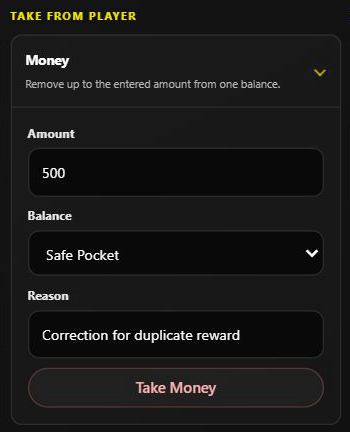
An unsubmitted example on Helios Bot Testing; no balance was changed.
See Giving Rewards and Taking Currency and XP for the Discord alternatives. Slash commands apply on submission, without this dashboard's extra confirmation. Give Money adds to the Wallet; Take Money subtracts up to the amount from one selected balance. Neither replaces a balance with an exact total like Set Player Balances.
Example: reset one kit-bind cooldown
If a player needs another attempt at a specific emote kit:
- Open their Cooldowns section.
- Under Emote Bind Cooldowns, choose the matching phrase, such as I need Stones.
- Choose Reset Selected, review the player and target, then confirm.
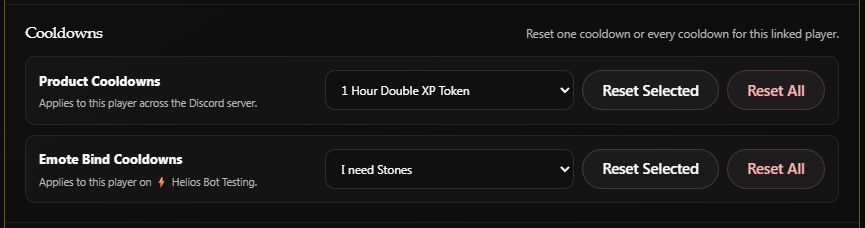
A selection example on Helios Bot Testing. No cooldown was reset for this screenshot.
| Reset type | Scope |
|---|---|
| Product Cooldowns | This player's product cooldowns across the Discord community |
| Emote Bind Cooldowns | This player's emote-bind cooldowns on the selected game server |
Use Reset Selected for a single target. Reset All clears every cooldown of that type for this player. These controls do not reset other players; product resets also leave server-wide product cooldowns alone.
Other support actions
| Action | Result |
|---|---|
| Give Kit | Delivers an existing live kit to the linked gamertag on the selected server |
| Give Killstreak | Grants a configured reward; Coins pay instantly, other types are banked claims |
| Give XP / Take XP | Adjusts community-wide Battle Pass progress |
| Give Bag Item | Adds a custom item to the player's Helios bag |
| Bag trash button | Removes the selected stored item after confirmation |
| Temp Ban | Applies a timed restriction to Game, ORP, or TP Home, with a reason |
| Unban Player | Clears the selected active temporary ban on this server |
For temporary bans, enter the duration in minutes and choose the correct Ban from type. A feature-only ban is not a game ban or Discord ban. Show reason in game controls the game announcement, not whether staff can see the reason. See the temporary-ban guide before confirming.
For kit delivery, make sure the player is online on the selected server. See Killstreaks for how players collect those rewards.
Staff XP grants use the entered amount, without multiplying it for personal or community XP boosts. Taking XP recalculates the level but does not undo already delivered rewards. Giving a bag item stores it for later; giving a live kit does not.
Before you confirm an action
- Check the selected game server at the top of the dashboard. Kit delivery, temporary bans, and emote-bind cooldowns use that server.
- Check the action wording. Wallet, safe-pocket, Battle Pass, bag, and product-cooldown information is shared across the Discord community; it is not a separate copy for each connected game server.
- Write a short reason whenever the form offers one. It makes the later balance log useful for the rest of your team.
Linking and online players
Link Player connects a Discord member to their game account. Unlink Player removes that account link from the Discord community, so verify the identity first. See player linking and unlinking.
If Online Players says Not set up, configure /panel players-add in Discord for this server. The dashboard uses that player-list snapshot and refreshes it every minute. An empty or historical activity record in Linked Players is not the live online list.