Helios Rust Console Bot Documentation
Kit Manager
Build and inspect Rust kits in the dashboard, add them to your server, and export emote wheel images for players.
- Last reviewed
- Tested on
- Helios Bot Testing dashboard
- Maintained by
- Helios RCE
Build kits visually, inspect kits already on your server, and make quick-chat wheel graphics for your community. Open the dashboard, choose Manage Server → Kit Manager. Premium is required to manage live server kits.
Inspect a kit already on your server
- Expand Kit Builder.
- Under Presets, choose a kit from Load Kit From Server.
- Review its Wear, Main Inventory, and Belt slots, including item quantities.
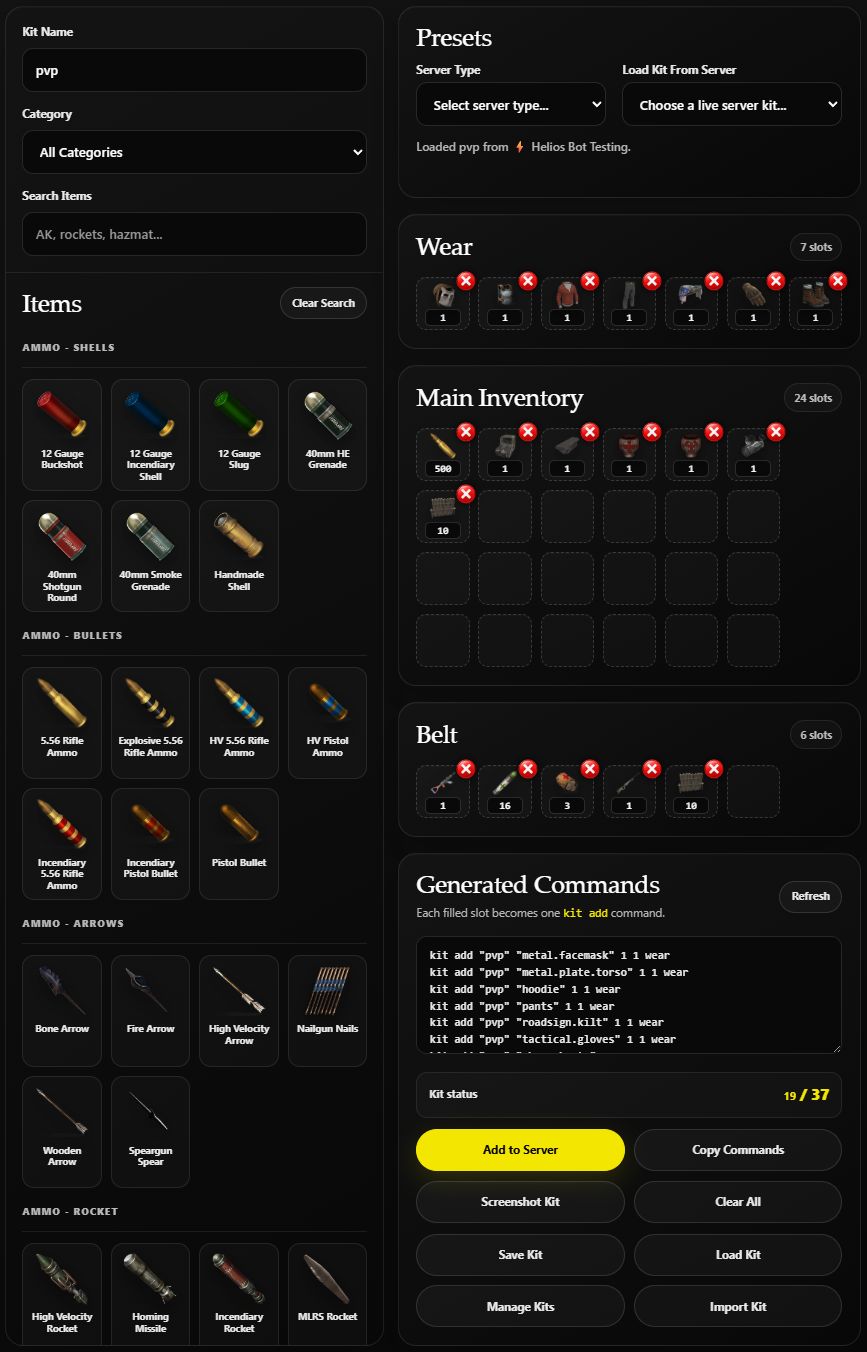
The existing pvp kit loaded from Helios Bot Testing. Loading it only fills the builder; it does not change the server kit.
This example has 19 filled slots, including armour, 500 rifle ammo, an Assault Rifle, and 16 Medical Syringes. Use it to check that gear is in the right container before giving the kit to players.
Find usage, export, or copy kits
Expand Kit Usage, Export & Copy near the top of Kit Manager. You need Manage Server in Discord and Premium on the game servers you manage through these dashboard controls.
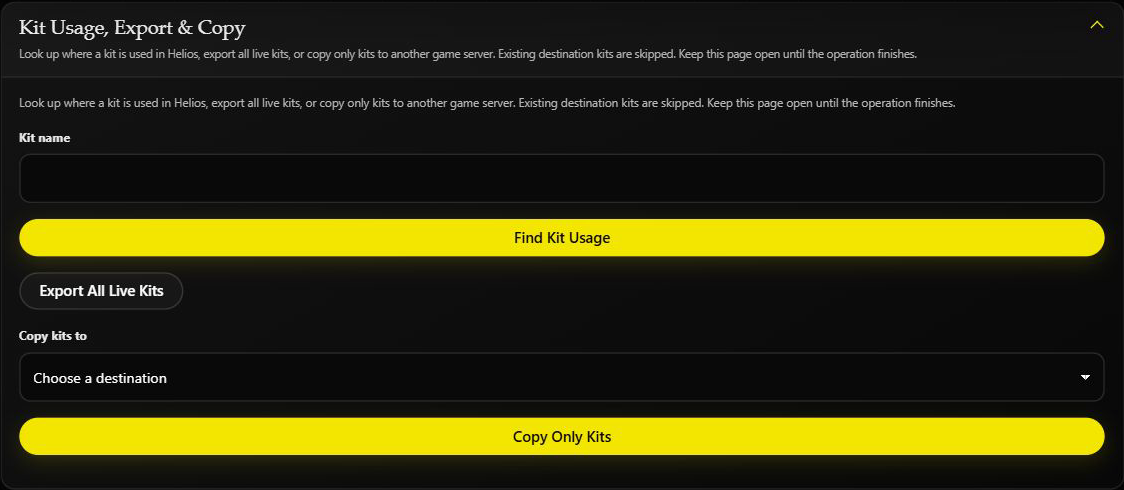
The unchanged controls on Helios Bot Testing. No export or copy was started for this screenshot.
Check where a kit is used
Enter its Kit name, then choose Find Kit Usage. Expand the listed systems to review their entries. The lookup checks Helios settings across this Discord community, not just the open game server.
No uses found means no matching Helios settings were found. It does not prove the kit is unused by players, the game, or other tools.
Download a kit backup
Choose Export All Live Kits and keep the page open until it finishes. It reads the selected server's kits and downloads a text file of kit-add commands. It does not change the live kits.
Check the exported count and any errors: unreadable kits can be left out. If no kit can be exported, no file is downloaded. This backs up kit items, not Shop products, Emote Binds, or the rest of your Helios settings. Applying the commands later makes changes on the server where you run them.
Copy only kits to another server
- Choose the destination under Copy kits to. The open game server is the source.
- Choose Copy Only Kits.
- Read and confirm the source-to-destination operation.
- Keep this page open and wait for the copied, skipped, and error totals.
- Open the destination's Kit Manager and inspect the live list.
Existing kit names on the destination are skipped, not replaced. This copies kits only; it does not copy other server settings. If the destination list is empty, there may be no other connected game server to choose.
If a copy encounters an error, it stops: later kits are not attempted, but earlier copies remain. A partially added kit may now exist and be skipped on a retry. Inspect it before retrying; there is no automatic rollback.
The Discord command also offers Replace ALL Kits, which deletes every destination kit before rebuilding the source kits. That destructive option is not part of this dashboard copy flow. See Kit Commands.
Build a new kit
- Enter a new Kit Name, such as
starter_v2. - Search for items and drag them into the desired slots. You can also select an item and click a slot.
- Set quantities and remove unwanted items with their × button.
- Review Generated Commands and the filled-slot count.
- When ready, choose Add to Server and wait for the result.
The layout supports 7 Wear, 24 Main Inventory, and 6 Belt slots. To start from a built-in kit, choose a Server Type under Presets and load one of its kit options.
Add to Server sends the kit commands immediately. It adds the listed items and does not first delete an existing kit with the same name. Use a fresh name when making a variant, then check the live result before replacing a kit players already use.
Open Kit Manager → Kits on this server and choose Refresh Kits to check the live list after adding a kit. Use Player Tools to give a test kit to a linked player on the selected server.
Save or share your work
| Control | What it does |
|---|---|
| Save Kit / Load Kit | Keeps and reopens kit designs in this browser |
| Copy Commands | Copies the generated kit commands for a backup or manual use |
| Import Kit | Opens the import tools for an existing design |
| Screenshot Kit | Creates a kit graphic you can share |
Saving a design in the browser does not install it on the game server. Keep a command backup if you need to move the design to another browser or device.
Make an emote wheel image
- Expand Emote Bind Wheel Images and choose Refresh Wheels.
- Find the wheel you want to share.
- Choose Download PNG or Copy Image.
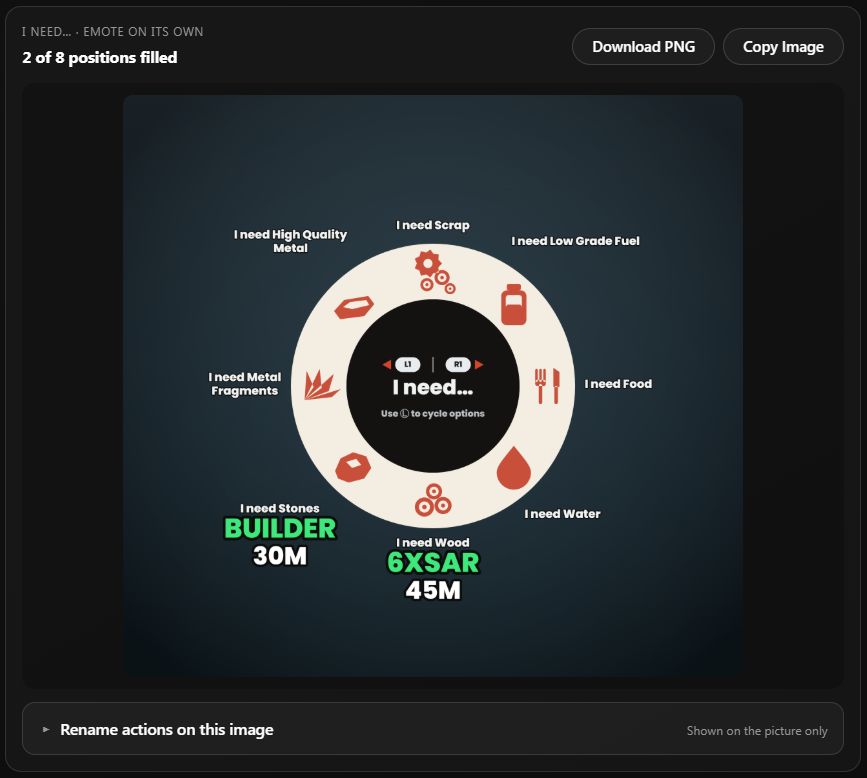
The image uses your active Emote Binds, including their actions and cooldowns. Paused binds are left off. In this example, players can see exactly which phrase requests Builder or 6XSAR.
Rename actions on this image changes the labels on the picture only. It does not rename the actual kit or edit the bind. Those display names are saved in this browser for this server.
Remove an old kit
Expand Kit Manager, find the kit, and choose its trash button. Confirm the kit name and selected server before choosing Yes, Delete Kit. Deletion removes the live kit from that server.
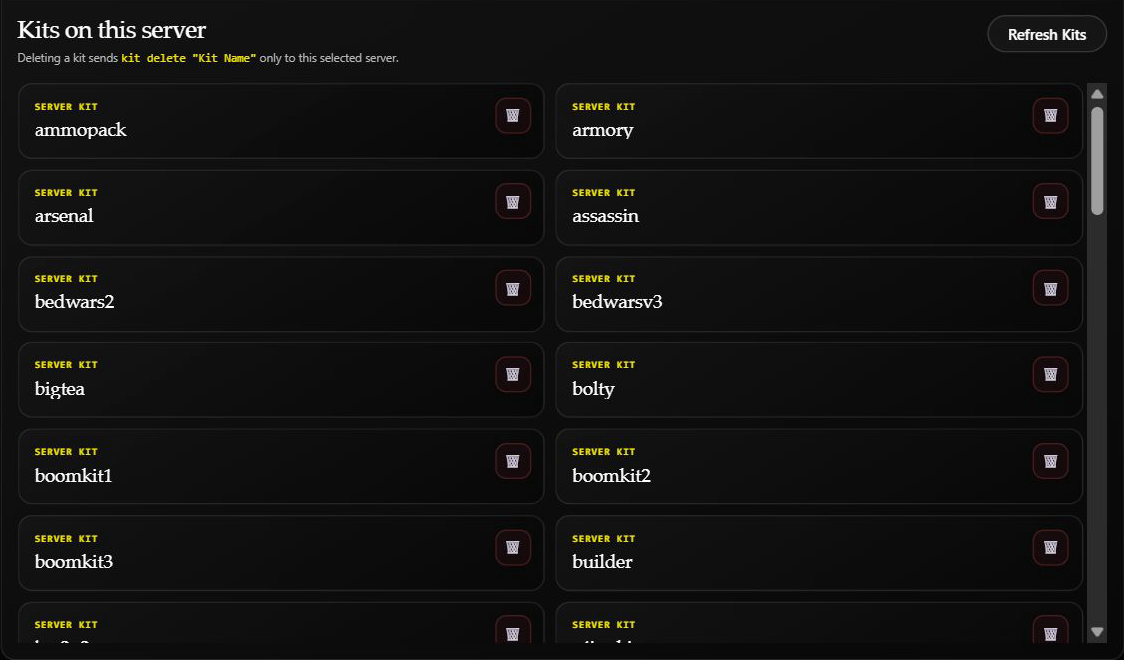
A read-only view of the existing list. Refresh Kits reloads the list; the trash buttons start live-kit deletion.
Before deleting or renaming a kit, use /kit info kit_name:"<KIT>" to check where Helios uses it. Keep a backup with /kit grab. See the Discord kit commands for viewing, exporting, and copying kits between servers.
You can also use Find Kit Usage and Export All Live Kits above. Check export errors before relying on the backup. Deleting a live kit does not remove or repair Helios settings that still reference its name.