Helios Rust Console Bot Documentation
Wipe Center
Choose the right Helios reset, understand its scope, and confirm it from the dashboard without clearing more than you intend.
- Last reviewed
- Tested on
- Helios Bot Testing dashboard; unsaved script preview; isolated PostgreSQL scheduler tests
- Maintained by
- Helios RCE
Wipe Center resets Helios player data from the dashboard. It does not wipe your Rust map or blueprints.
Open the dashboard, choose Manage Server, then Wipe Center.
Reset one player instead of everyone
Open Targeted Player Wipes when you need to fix one player’s data without affecting the rest of the community.
| You need to reset | Choose | Who you can target | What to know |
|---|---|---|---|
| Battle Pass progress and claimed rewards | Battle Pass | One Discord user | This reset applies across the Discord community. |
Saved /bag inventory | Player Bags | One Discord user or every member of one Discord role | An empty role does not change anything. |
| Saved TP Home locations | TP Home Locations | One Discord user or a gamertag | A Discord user needs a linked gamertag. |
Review the player or role before confirming. These targeted resets apply across every game server connected to the Discord community, not only the server currently open in the dashboard.
Choose Data to wipe, then Target type. For a user, enter their Discord user ID; for bags you can instead select a Discord role; for homes you can instead enter a gamertag.
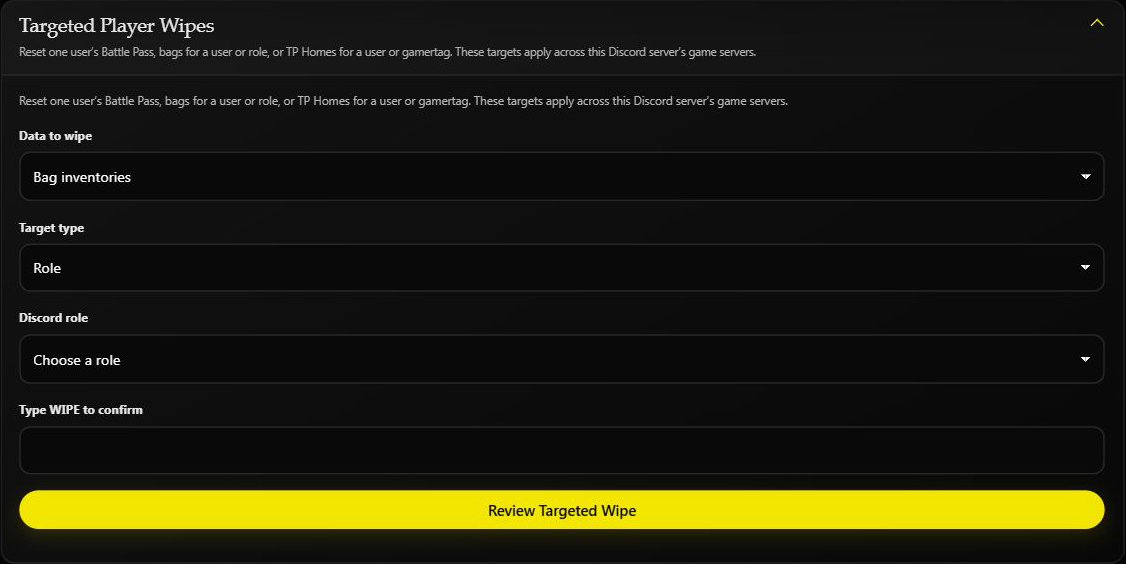
Enter WIPE only when you want to continue, then choose Review Targeted Wipe. Check the final warning before applying the reset. The screenshot above is an unsubmitted testing-server preview; no bag was cleared.
Choosing @everyone clears all saved bags. For Discord commands, bags accept either user or role, not both. TP Home accepts only one of server, gamertag, or user.
Discord's no-options /wipe tp-home clears homes across every connected game server. The dashboard's separate TP Home Locations card clears homes on only the selected game server. Do not treat these as interchangeable.
Temporarily pause items after a wipe
Open the Delays tab when you want something to turn back on automatically after a set time. You can delay a whole shop category, one product, or one bind.
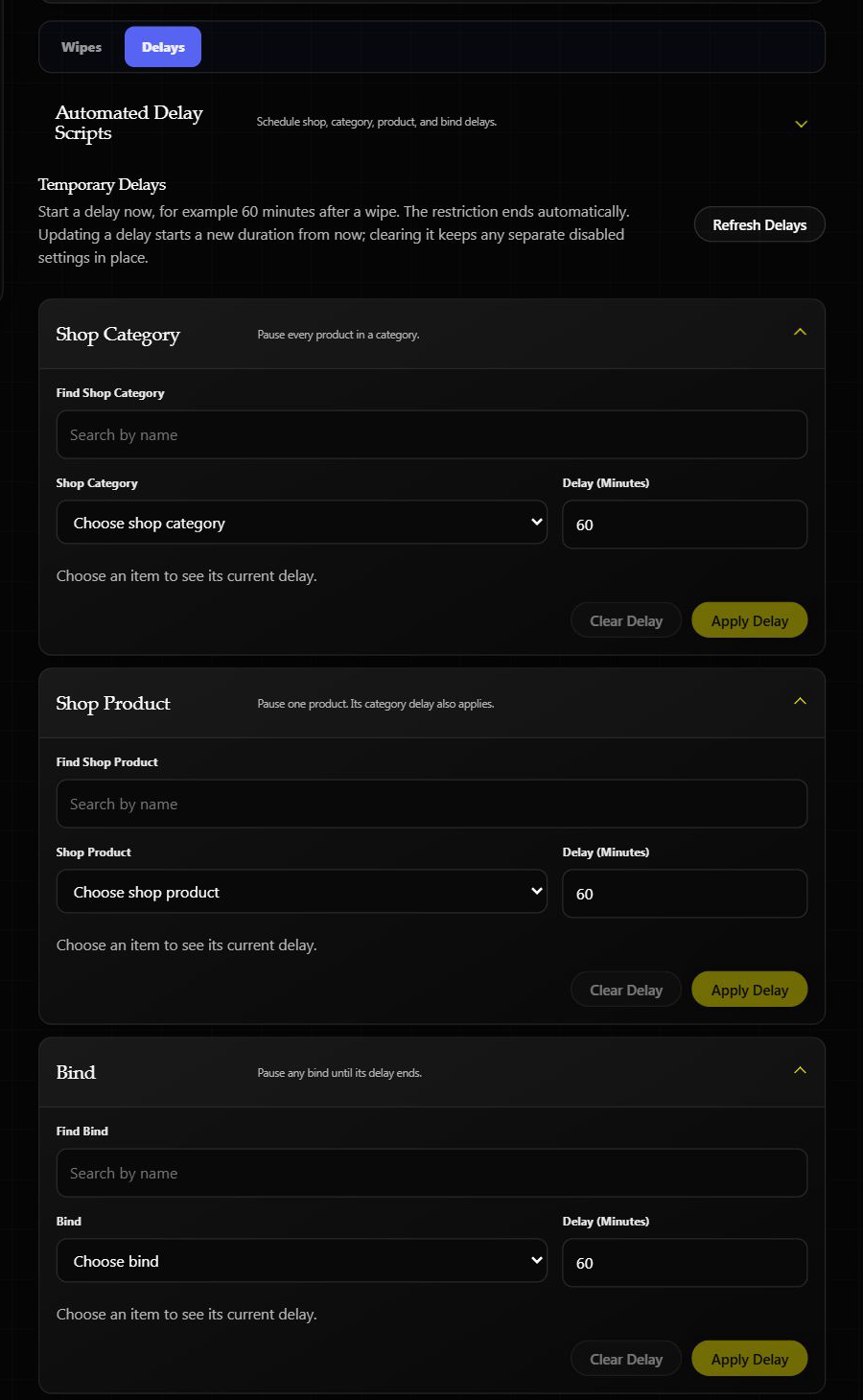
- Expand Shop Category, Shop Product, or Bind.
- Search for and select the item to pause.
- Enter the number of minutes.
- Choose Apply Delay.
The countdown starts from the moment you apply or update it. Clear Delay ends that temporary pause; it does not turn back on something that was separately disabled in its own settings. Use Automated Delay Scripts when you want the same timing to happen on a schedule.
Automated Wipe Scripts
The Automated Wipe Scripts card at the top lets you save a wipe-day schedule:
- Choose Create Script and give it a name.
- Select First Run Date & Time with the calendar. The dashboard shows your browser's time zone.
- Choose Once, or repeat every number of days or weeks (up to 365 days).
- Select what gets wiped. Hours and Stats each let you choose Soft, Weekly panel only, or Hard.
- Review the schedule and scopes, authorize the automatic resets, then Save Script.
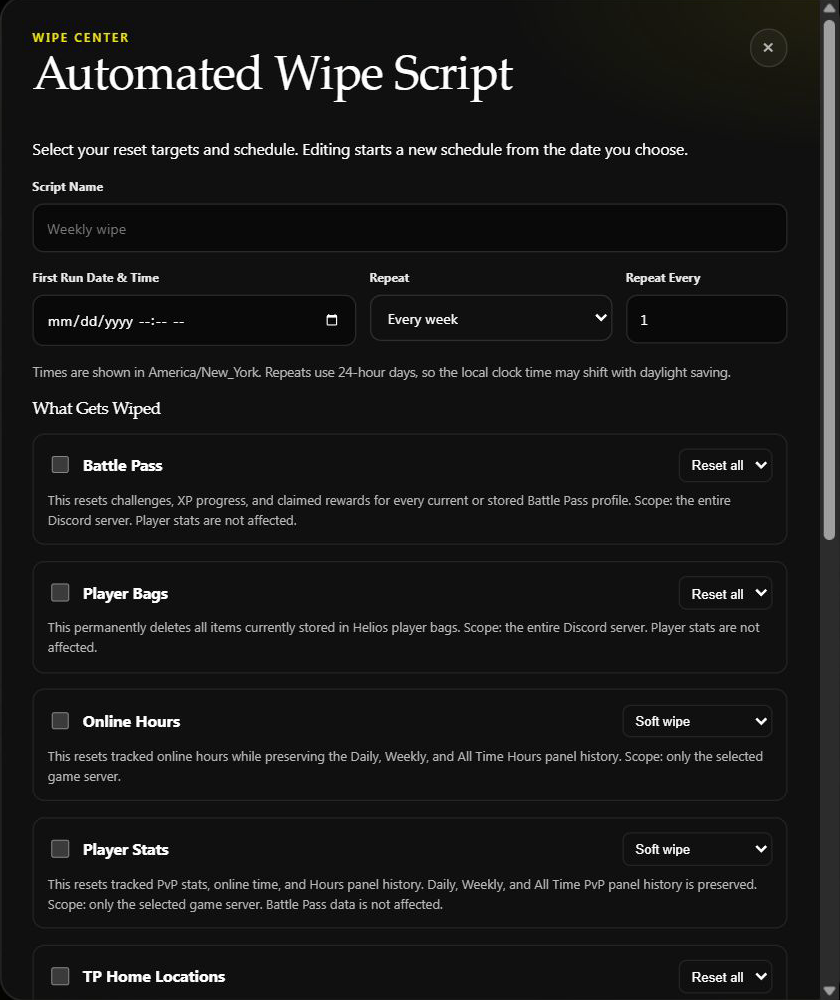
At the bottom of the form, check which resets affect only the selected game server and which affect the whole Discord community. The authorization box is required before saving.
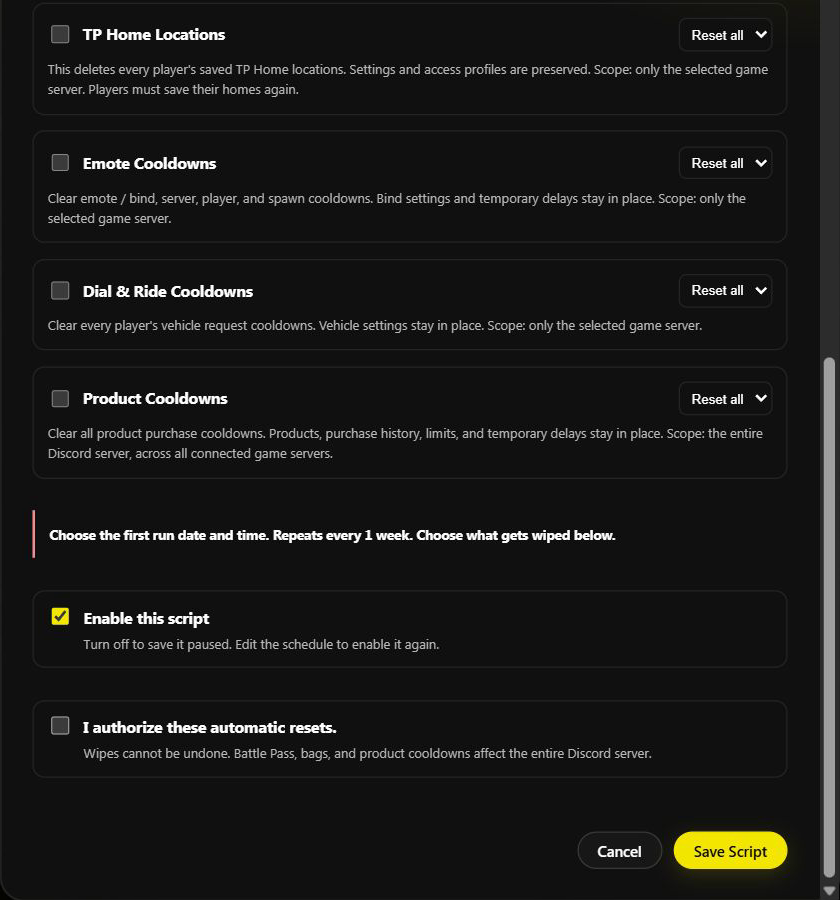
These screenshots show an unsaved example. No wipe was scheduled or run while taking them.
Use Pause to stop future runs, or Edit Schedule to change targets and choose a new first run. Turn Enable this script on when you are ready to resume. Delete removes the schedule and preserves recent run history. A running script cannot be edited or deleted.
Repeats start from the first run and use elapsed 24-hour days. Local clock times can shift when daylight saving changes. Helios checks schedules about every 10 seconds; other scheduled wipes for the same Discord server wait for the current one to finish.
Recent runs shows completed actions and any action whose completion could not be confirmed. Failed or interrupted runs pause for review and are not automatically retried. A schedule missed by more than 15 minutes also pauses. Review the data and choose a new first run to continue.
Check what the reset affects
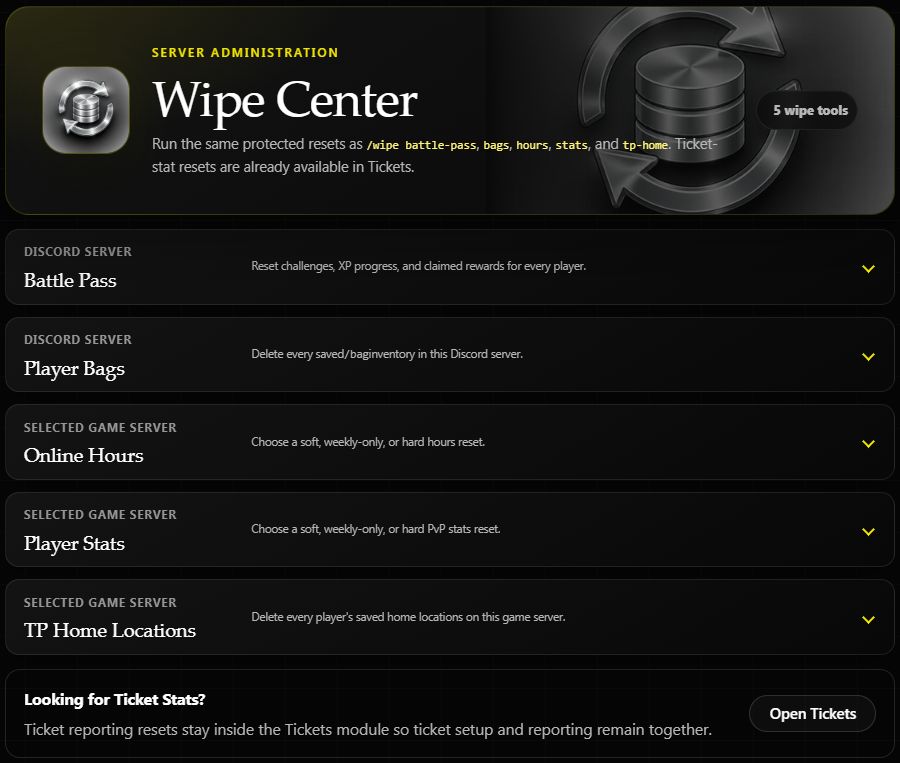
| Tool | What it resets | Scope |
|---|---|---|
| Battle Pass | Player progress, challenges, and claimed rewards | Entire Discord server |
| Player Bags | All saved Helios /bag inventories | Entire Discord server |
| Online Hours | Tracked hours or Hours panel history, depending on the mode | Selected game server |
| Player Stats | Tracked stats or PvP panel history, depending on the mode | Selected game server |
| TP Home Locations | Players' saved home locations | Selected game server |
| Emote Cooldowns | Emote / bind, server, player, and spawn cooldowns | Selected game server |
| Dial & Ride Cooldowns | Every player's vehicle request cooldowns | Selected game server |
| Product Cooldowns | Product purchase cooldowns | Entire Discord server |
Battle Pass, Player Bags, and Product Cooldowns are shared across your Discord server. Opening Wipe Center through one Rust server does not limit those resets to that Rust server. Cooldown resets preserve configuration, purchase history, limits, and temporary delays.
Ticket reporting resets are in Tickets. Use the individual Battle Pass, Bag, or TP Home command guides when you need their Discord targeting options.
Choose a reset mode
Online Hours and Player Stats each offer three choices:
| Choice | Use it when… | What stays |
|---|---|---|
| Soft Wipe | You want tracked hours or stats to start fresh | Saved panel history |
| Soft Weekly Wipe → Wipe Weekly | You want only the current Weekly panel column to restart | Tracked data, Daily, and All Time |
| Hard Wipe | You want tracked data and saved panel history reset together | Other game servers' data |
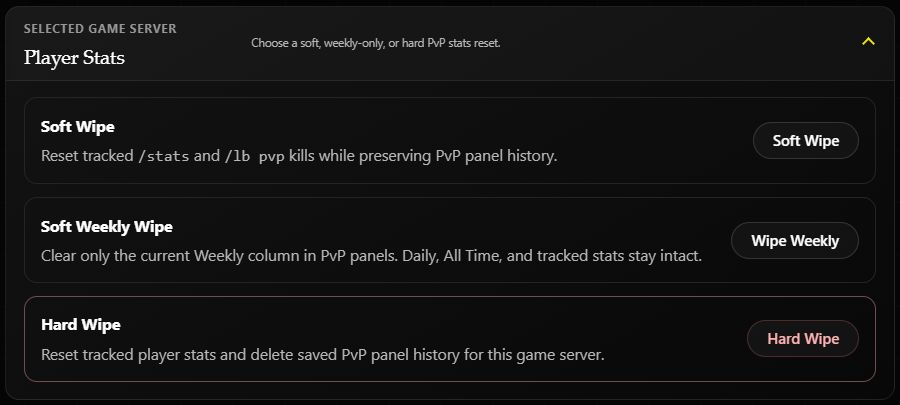
Player Stats also affects playtime: its Soft Wipe and Hard Wipe clear tracked online time and saved Hours panel history. The Stats Soft Wipe preserves PvP panel history only. Choose Wipe Weekly to keep tracked data and other panel history.
Example: restart this week's PvP competition
To clear the Weekly PvP panel column while keeping players' tracked stats and All Time results:
- Confirm the game server shown at the top of the dashboard.
- Expand Player Stats and choose Wipe Weekly.
- Check that the dialog says Reset the Weekly PvP column? and names the selected-game-server scope.
- When you are ready to perform the reset, check I understand this cannot be undone, then choose Yes, Run Wipe.
- Wait for the success message and check the panel after its next update.
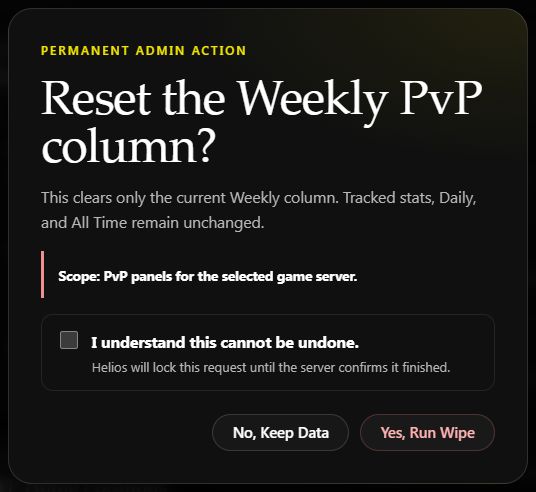
Confirmation preview on Helios Bot Testing. No wipe was run for this example.
Choose No, Keep Data to cancel. Resetting a Weekly column does not change the panel's weekly schedule or timezone.
After a reset
Check the result that matches your choice: the Weekly column for a weekly reset, or the relevant player stats and panel history for a soft or hard reset. Panels refresh on their normal update cycle.
If Helios says it could not confirm the reset, check the data before submitting again. The dashboard does not automatically retry an uncertain wipe.
Wipe Center requires Manage Server, Premium on the selected game server, and an enabled server connected to Helios. There is no undo button for these resets.
See the focused guides for resetting Stats and resetting Hours.