Helios Rust Console Bot Documentation
Support Tickets
Create a private support-ticket flow in Discord, choose who can help, keep transcripts, and manage ticket reporting.
- Last reviewed
- Maintained by
- Helios RCE
What tickets do
Helios posts a public Create a Ticket button in your Discord. A player chooses a category, then Helios opens a private channel for that player and your support team.
Use it for things like player reports, billing help, bug reports, or premium support.
Ticket settings and categories are shared by the whole Discord community, not just the game server selected in the dashboard. Changing them from a testing game server's page still affects that community's tickets. Use a separate test Discord community when you need to experiment without changing real support.
Before you start
- This is a Premium feature.
- You need Manage Server to set it up.
- Helios needs permission to create and manage ticket channels. It also needs permission to send messages and attach files in your transcript channel.
Set up the public ticket panel
Open your server in the Helios dashboard and choose Tickets.
- Under Public panel channel, choose the channel where players should see the Create a Ticket button.
- Optionally choose a private Transcripts channel. Helios posts the text copy of a ticket there when the closed ticket is deleted.
- Add Ticket mod roles. Members with these roles can see, reply to, close, reopen, and delete tickets without needing server-wide admin permission.
- Add Mention roles only when you want Helios to ping those roles for every new ticket.
- Write the message players see inside a new ticket.
- Choose whether players should receive a DM with their transcript after the ticket is deleted.
- If needed, turn on Auto Close inactive tickets and set the number of hours.
- Click Save Settings, then click Publish / Refresh Panel.
Saving and publishing are separate: saving keeps your choices; publishing creates or refreshes the public Discord message.
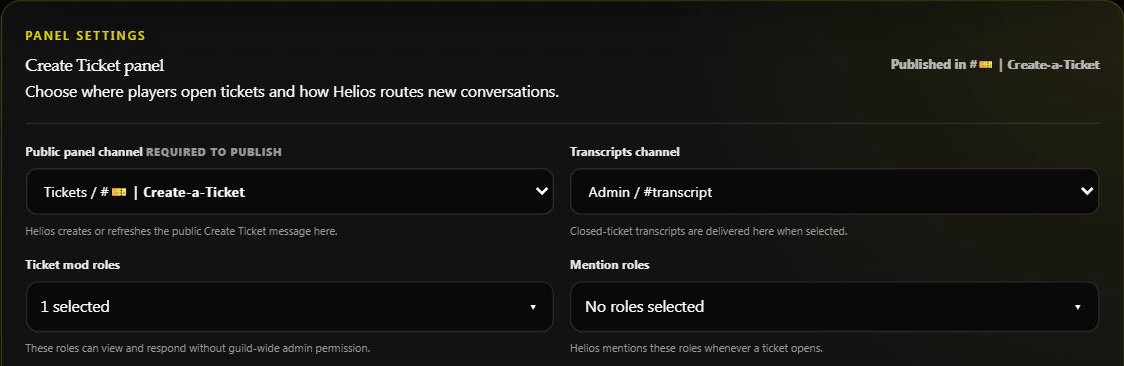
The existing setup was inspected without saving or publishing changes. Ticket mod roles grant ticket access; Mention roles only choose who gets pinged.
Add ticket categories
Click Add Category, then give the category a clear player-facing name such as Bug Report or Premium Help.
For each category, choose:
- The Discord category where its private ticket channels should be created.
- Its position in the player picker.
- Any role a player must have before they can choose it. Leave this empty when everyone can use it.
You can edit the category later from the Ticket Categories list. A ticket category needs a real Discord category selected before players can use it.
What players and staff see
- A player clicks Create a Ticket.
- They choose one of the categories you made.
- Helios creates a private ticket channel. The player, Helios, and your ticket mod roles can see it.
- The player or your ticket staff can use Close Ticket.
- Closing locks the player from sending more messages. A ticket admin can then Re Open it or Delete Ticket.
Each player can have one open ticket at a time. If they already have one, Helios points them back to that ticket instead of creating another.
Closing, reopening, and transcripts
When a ticket closes, it is scheduled to delete after 30 minutes. A ticket admin can delete it sooner or reopen it first.
Closing also stops the opener and added participants from sending messages, unless they also have ticket-staff or administrator access. Re Open restores their ability to reply and takes the ticket out of the closed-ticket deletion queue. If the opener has another open ticket, Helios will not reopen a second one; finish the other conversation first.
When it is deleted, Helios builds a text transcript. It sends that file to the optional transcript channel and, if enabled, also tries to DM it to the player. If the player has DMs closed, their personal copy may not arrive. A correctly configured transcript channel can still receive the staff copy.
The dashboard label DM Player when closed refers to that later transcript delivery: it is sent when the closed ticket is deleted, not as soon as Close Ticket is pressed. Deleting removes the Discord channel; a transcript does not restore it or turn it back into a ticket. Before deleting, confirm the transcript destination and Helios's file permissions. Delivery can fail if the channel or permissions are missing.
Auto close inactive tickets
Turn on Auto Close inactive tickets when you want Helios to close tickets that have had no messages for a set amount of time.
- Enter whole hours from
1to8760. 48means two days with no ticket messages.- Existing tickets start counting from the moment you turn this on.
- Auto-close closes the ticket; the normal 30-minute delete timer then starts.
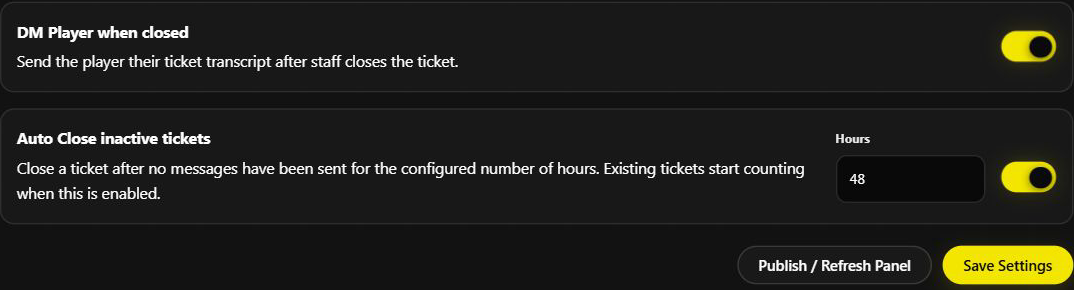
This shows existing settings, not an auto-close test. No tickets were closed, reopened, or deleted for the screenshot.
Helpful Discord commands
| Command | Who can use it | What it does |
|---|---|---|
/ticket panel | Manage Server | Opens the ticket setup panel in Discord. |
/ticket stats | Manage Server | Shows totals, open and closed tickets, common categories, staff activity, and average resolution time. |
/ticket close | Ticket staff or Manage Server | Starts the close confirmation for the ticket you are in. |
/ticket add-person | Ticket staff or Manage Server | Adds up to three people to the open ticket you are in. |
Start a fresh reporting period
Choose Wipe Ticket Stats in the dashboard, or use /wipe ticket-stats, when you want reporting to begin at zero.
This resets ticket totals, top creators, top staff, category counts, resolution rate, and average resolution time for this Discord server. It does not delete ticket settings, categories, open tickets, transcripts, or past ticket records.
Quick checks if something does not work
Players cannot make a ticket
Make sure the public panel has been published, at least one ticket category is set up, and that category still points to an existing Discord category. Also check any required player role.
Staff cannot see a ticket
Add their role under Ticket mod roles and check that Helios can manage the Discord category where tickets are created.
No transcript arrives
Check that the transcript channel still exists and Helios can send messages and attach files there. A player's DM settings can block their personal copy without affecting the staff transcript.
Recommended starting setup
Start with two simple categories: Player Help for everyone and Premium Help with your Premium role required. Send transcripts to one private staff channel, add your support role as a ticket mod role, and test the whole flow with a non-admin account before sharing the panel.