Helios Rust Console Bot Documentation
Rust Console TP Home Command Panel
Set up saved player homes, access profiles, and activity notices for a Rust Console server.
- Last reviewed
- Maintained by
- Helios RCE
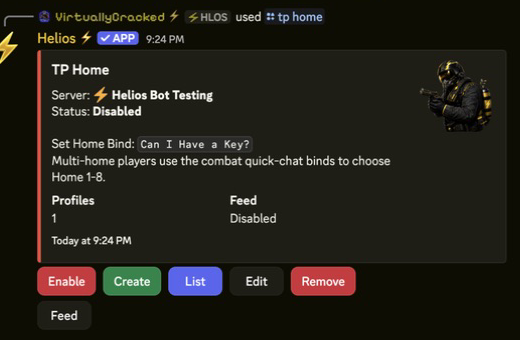
TP Home in Discord
Use this panel to control who can save homes, how many homes they get, and how long each teleport takes. TP Home is a Free feature; you need Manage Server permission to change its settings.
Command
| Command | Tier | Required Access | Purpose |
|---|---|---|---|
/tp home | Free | Manage Server | Open TP/Home panel for one server. |
What the panel lets you do
- Turn TP Home on or off for the selected game server.
- Create separate access profiles, such as Default, VIP, or Elite.
- Set 1–8 saved homes, a teleport delay, and a cooldown for each profile.
- Give an optional existing kit after a successful teleport.
- Require a Discord role for a profile, or leave it open to everyone.
- Choose a Discord feed channel for TP Home activity.
What players use in game
- Set home bind:
Can I Have a Key? - Teleport bind:
Retreat!
Setup Flow
- Run
/tp home server:"<SERVER>". - Enable TP/Home.
- Open Create to make your first profile, then set the home's delay and cooldown.
- Add an optional kit or Discord role if you want that profile to be special.
- Choose Feed if staff should see home activity in a channel.
- Validate the full player flow with one linked test user: save a home, accept the prompt, then teleport back.
For the dashboard walkthrough and the full quick-chat steps, see TP Home Setup.