Helios Rust Console Bot Documentation
Rust Console TP Home Setup Guide
Give players saved homes with dashboard access profiles, role requirements, delays, and cooldowns.
- Last reviewed
- Maintained by
- Helios RCE
Let linked players save a bed location and return using Rust quick chat. Open Manage Server → TP Home in the dashboard. TP Home is available on the Free tier.
Set up access
- Expand Access Profile Builder, then open Default.
- Set Allowed Homes from 1–8.
- Choose a Required Discord Role, or leave Everyone selected.
- Set Teleport Delay and Cooldown in seconds.
- Choose Save Default, then turn TP Home on if it is off.
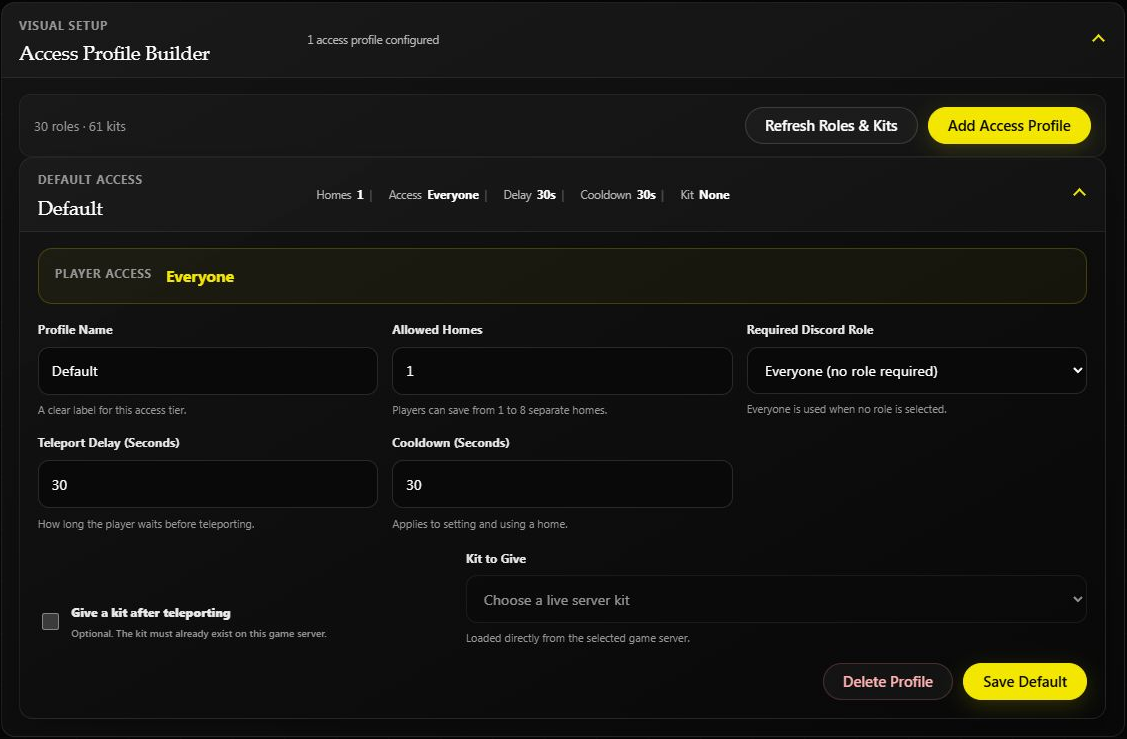
The test server's saved Default profile allows one home, a 30-second delay and a 30-second cooldown. The cooldown applies to setting and using a home.
Use Add Access Profile for another access tier. For example, create a VIP Homes profile with two homes and require your VIP role. Use Refresh Roles & Kits if a new role or kit is missing.
You can optionally Give a kit after teleporting. Choose a kit that already exists on this game server.
Set up feedback
Expand Feed & Reply Window. Choose a Discord feed channel if you want staff to see home activity, and set how long players have to answer a setup prompt. Choose Save Server Settings.
How players save a home
- Use “Can I Have a Key?” in Rust's building quick chat.
- If offered multiple homes, choose the home slot with its matching combat response.
- Answer “Yes”, then spawn on the bed to save that location.
To return, use the combat quick-chat response assigned to that home. Expand How TP Home Works on the dashboard to see the home-slot mapping.
On a Premium server, a linked player can also use the private Player Actions menu in Discord to save or visit a home. Setting a home from that menu still kills the in-game player to capture the bed spawn. TP Home itself remains available on the Free tier; the combined /actions menu is the Premium shortcut.
Change or reset homes
Edit a profile to change its access rules. Removing a profile does not delete saved player home locations.
For a map wipe, use Wipe Center → Wipe TP Home Locations. This clears player locations while preserving settings and profiles.
If a teleport will not start
Check that the player is linked, has the required role, has saved that home, and is off cooldown. Combat Lock or a TP Home ban can also block access.
Admins can use /tempban with Ban From TP Home to restrict an individual player's access.
Prefer Discord?
Run /tp home server:"<SERVER>" to open the admin panel. It is for people with Manage Server permission.
- Turn TP Home on.
- Choose Create to add an access profile, or Edit to change one you already have.
- Set the home's delay, cooldown, optional kit, and role requirement.
- Use Feed to choose a Discord channel for home activity, or use it again to clear the current feed channel.
- Use List to check profiles and Remove only when that profile is no longer needed.
Each admin opens their own temporary panel, so changing the controls in your panel does not change what another admin sees on screen.