Helios Rust Console Bot Documentation
Rust Console Killfeed Troubleshooting
Diagnose and fix Rust Console killfeed issues in Helios, including silent channels, wrong routing, noisy feeds, and post-wipe failures.
- Last reviewed
- Maintained by
- Helios RCE
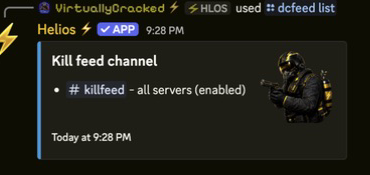
Start by checking what is already saved. Do not repeatedly add destinations or replace templates before you know which part is quiet.
First: where is the message missing?
| Missing output | Check |
|---|---|
| Kills in Discord | Killfeed → Discord Channels, or /dcfeed list. |
| Kills inside Rust chat | Killfeed → In-game Feed, or /gamefeed list. |
| Player joins and leaves | Discord → Feeds, or /dcplayerfeed list. |
| Staff actions | The Premium Admin Feed, not /dcfeed. |
The list commands require Manage Server and do not change anything. Configuring a Discord killfeed does not automatically create an in-game template, or the other way around.
Both killfeeds are quiet
- Check that the correct game server is connected and enabled in the dashboard. Use connection troubleshooting if it is offline.
- Check that a new qualifying kill actually happened. A new destination does not replay old kills.
- After a saved change, allow about a minute and watch the next normal event. Fast kills can be grouped, so output is not always immediate.
- If only non-player deaths are absent, check the filters below instead of changing channels.
Keep controlled tests on a separate testing server. You do not need to create a kill on your live server just to check the saved setup.
Discord is quiet, but Rust chat works
Check the destination's Scope and Status, then Helios's View Channel, Send Messages, and Embed Links permissions. A paused destination will not post. A route for another game server will not receive this one's kills.
If the channel does not appear in Add Channel, check its type and Helios's access. The picker lists accessible text and announcement channels. Refresh after fixing access; do not add unrelated destinations as a workaround.
Rust chat is quiet, but Discord works
Check for at least one active in-game template matching this game server or All connected servers. Even built-in animal/environment messages need an active matching template.
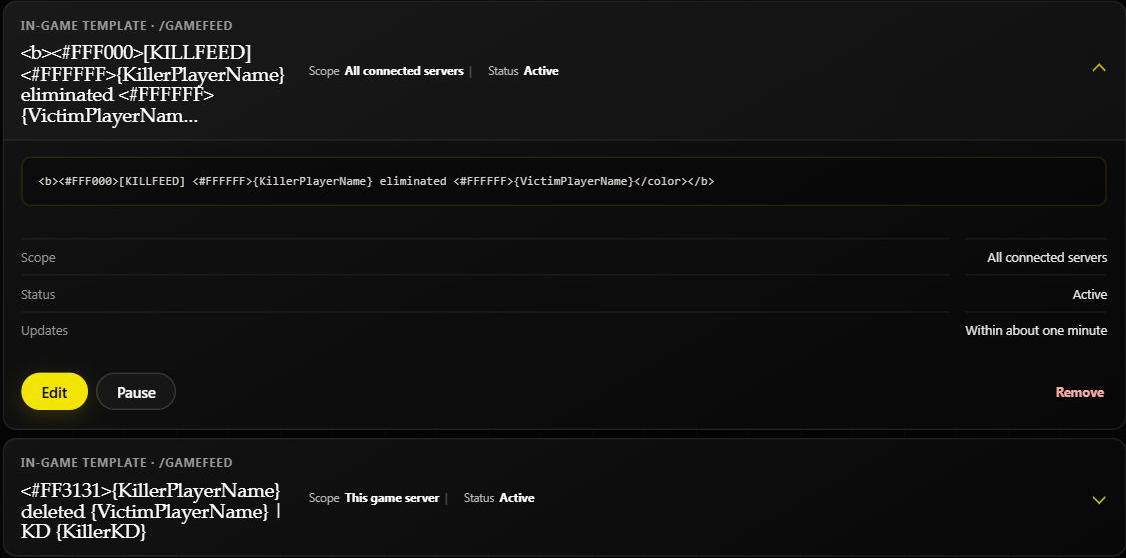
If names appear but a placeholder stays as typed, copy it exactly from Available placeholders or /gamefeed help. Unknown names are not automatically corrected.
The wrong style keeps appearing
Helios randomly chooses one eligible template. Shared templates and local templates are both eligible; local ones do not override shared ones. Look for another active shared template before adding a replacement.
Use Pause for a temporary stop. Check other servers before editing or pausing a shared template, because they use it too.
Animal or environmental deaths are missing
Open /settings server server:"<SERVER>" and check both switches:
- PvE in Feed off: recognized non-player kills and deaths stay hidden.
- PvE on, EvE off: players killing recognized scientists can appear, while other non-player events stay hidden.
- Both on: recognized animal, scientist-caused, trap, and environmental events can appear too.
Generic or unidentified causes remain hidden. The dashboard's Include PvE kills changes PvE only. See the full settings table.
Distance shows a mystery-box icon
{Distance} requires Premium Player Tracking and a tracked position for both players. Missing positions and non-player causes can show the icon even when the rest of the feed works. It is not a made-up distance or a guaranteed weapon-hit measurement.
The wrong server appears in a channel
Check for All connected servers routes. On the dashboard, add the desired server-only destination, then pause or remove the unwanted shared route after checking who else uses it. The destination card has no scope editor.
WARNCheck removal scope
/dcfeed remove without a server removes every killfeed configuration for the selected channel. Include the server to remove only that server's destination. Review /dcfeed list first.
After a wipe or Discord channel change
Check the server connection, existing scopes/statuses, and channel permissions. Renaming a channel keeps its destination; deleting and recreating a same-named channel does not. Add the replacement only when the original is genuinely gone.
What to send support
Include the game server name, whether Discord or Rust chat is affected, the event type, its approximate time and timezone, and a cropped example. Hide RCON credentials, account details, and unrelated chat. Say whether ordinary PvP kills work and whether PvE/EvE are enabled.
Related Guides
Related Feature Pages
Next Steps
Change one identified setting at a time, then watch normal new activity. Keep a note of the channel and scope you intended so future staff can check it without rebuilding the feed.