Helios Rust Console Bot Documentation
Rust Console Offline Raid Protection (ORP) Setup
Set up offline raid protection on Rust Console. Configure /orp settings once, then players protect their own base in game with the ORP quick chat.
- Last reviewed
- Applies to
- Helios 2026.8
- Related
- /orp settings
- Maintained by
- Helios RCE
Overview
Offline raid protection stops a base being raided while everyone who lives in
it is logged off. You configure the rules once with /orp settings — how long
a base has to be empty before protection kicks in, how long it lasts, how big
the zone is — and after that players opt themselves in, one base at a time,
without asking staff for anything.
/orp is the admin command. It lets staff configure how ORP zones behave per
server, review existing zones, and wipe zones when needed. ORP is a premium
feature: the panel opens on the free tier, but protection cannot be enabled.
Important:
/orpis for staff setup and review. Players request their own zone in-game with"Can I Build Here", or through ORP → Set ORP in the private Player Actions menu. Both routes use the same eligibility and placement rules.
Video Tutorial
Requirements
- Connected server in Helios
Manage Serverpermission in Discord- Premium enabled for the target server
- Server-side custom zone commands available, because Helios creates and edits ORP zones through zone commands
- For
Clanmode: clan data set up in Helios and clan members linked correctly
How ORP Works
- Staff configure ORP with
/orp settings. - A player uses the ORP quick-chat trigger in-game.
- Helios checks whether that player is allowed to create an ORP zone.
- If valid, the player gets a Yes/No confirmation prompt.
- Helios creates one ORP zone centered on that player's current base position.
- While tracked members are online, the zone stays
Online. - After the last tracked member goes offline, the zone moves to
Pending. - When the activation timer ends, the zone becomes
Protected. - When the protection timer expires, the zone is removed.
- If a tracked member comes back online before or during protection, the zone returns to
Online.
Zone States
Helios uses three main ORP states:
Online: tracked members are online, so the zone is active but not protecting the basePending: nobody tracked is online and the activation countdown is runningProtected: ORP protection is live for that zone
When a zone is protected, Helios applies the protected color and blocks damage to the base. PvP remains allowed. Allow Building is a separate setting: turn it on if players should be able to build during protection, or leave it off to block building until protection ends.
NPC Damage controls damage from NPCs while protection is active. NPC Damage and Allow Building both default to On. Online zones allow both regardless of the protection settings, so an online-colored zone is not a protected base.
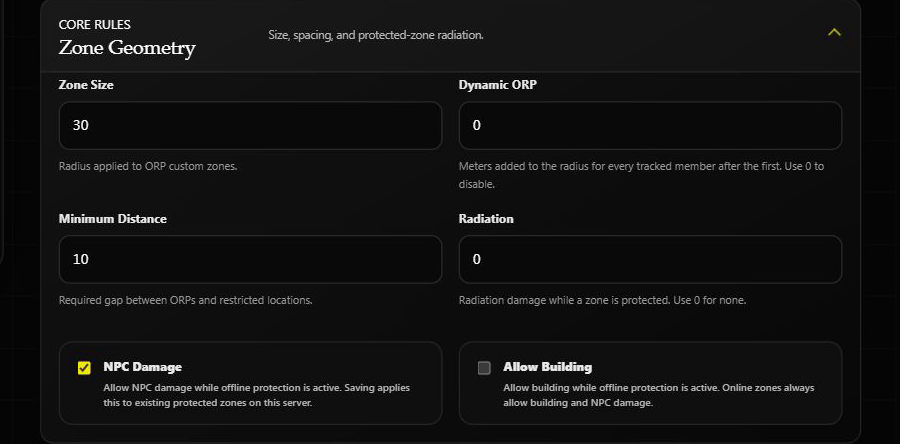
Set up ORP in the dashboard
Open Manage Server → Offline Protection.
- In Zone Geometry, set the base radius, spacing and radiation.
- In Tracking & Timing, choose Team or Clan, the minimum membership, and your activation and expiry times.
- Choose a Required Role if access should be restricted.
- Configure Appearance & Messages and ORP Feed.
- Choose Save Changes, then Turn ORP On.
Check the save result
Saving zone settings updates existing Online, Pending, and Protected ORPs on the selected game server. Helios uses each zone's current state: saving does not force an online base into protection. Radiation and protection-only rules take effect when the zone is protected. Saved zone sizes are retained when Helios checks the zone again.
Wait for the result message, not just All Changes Saved. A successful result names how many existing zones were updated. If there are no saved ORPs, the message says new zones will use the settings.
If some updates could not be confirmed, your settings are still saved. Reconnect the game server and choose Retry Zone Updates to apply those saved settings again. You do not need to wipe the zones or re-enter all the settings. Check Active ORP Zones and the affected zone afterwards. If the message asks for an ORP worker update, contact Helios support rather than repeatedly retrying.
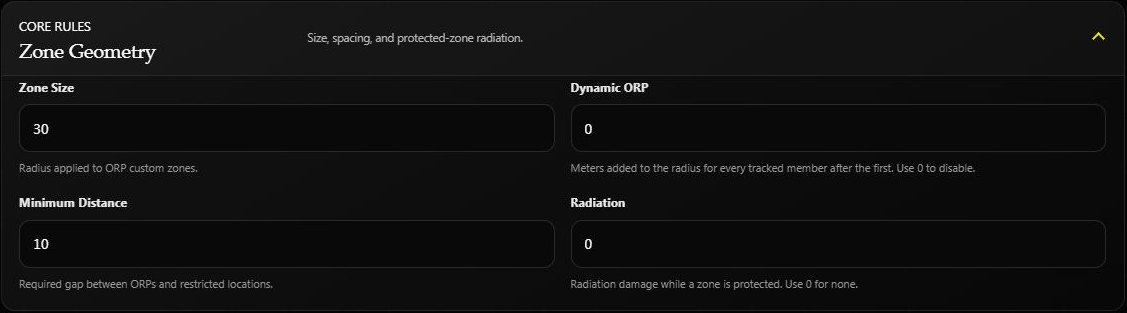
Dynamic sizing
Dynamic ORP is the extra radius, in meters, for each tracked member after the first. Set it to 0 to turn growth off.
For example, a 30-meter base with 5 meters of growth and four members targets a 45-meter radius. Helios limits growth to available space so it does not disturb nearby restricted areas. The base size remains the minimum.
Access and timers
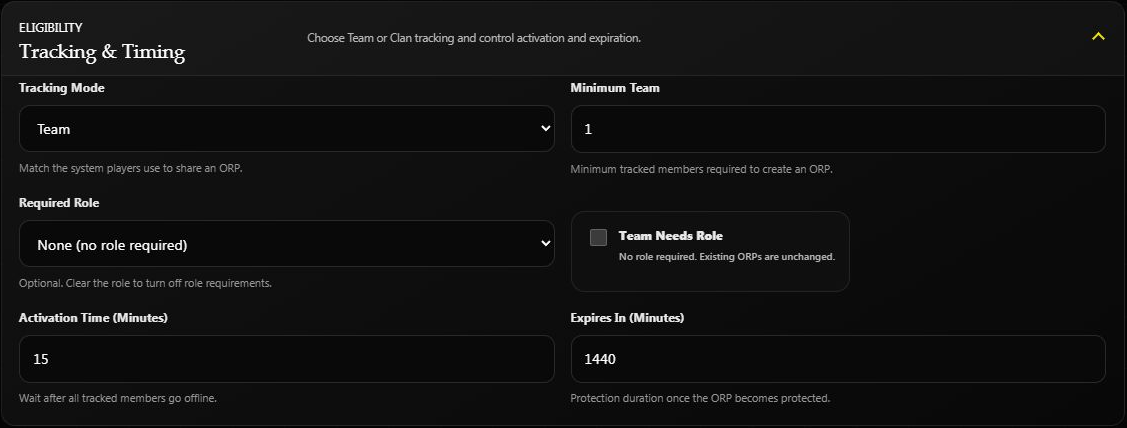
With a Required Role, the placing leader must be linked and have that role. Turn on Team Needs Role to require it for every tracked member. These controls apply when creating an ORP; they do not change existing ORPs.
Activation Time starts after all tracked members go offline. Expires In is the duration once protection begins. Both fields use minutes; 1440 means 24 hours.
Use the Scheduled and Timed tabs for the separate schedule controls. Follow SRP and ORP schedules to distinguish server-wide raiding hours, ORP creation blocks, and scheduled protection pauses.
Schedule the right ORP window
Under Scheduled, choose the control that matches your goal:
| Control | What it changes |
|---|---|
| Creation Timer | Blocks new ORP creation during a window; existing zones stay unchanged. |
| Scheduled ZORP | Blocks new ORPs and either deletes existing zones or disables and restores them. |
Choose the days, 24-hour times, and time zone, then use that card's Save button. Delete all ORPs is permanent; Disable and restore all ORPs returns the same zones when the window ends.
Use the Timed tab for its separate timed controls. For server-wide raid hours rather than player ORP zones, see Scheduled Raid Protection.
Setup
- Run
/orp settings server:"<SERVER>". - Review the current ORP panel values before changing anything.
- Turn Offline Protection on.
- Choose whether the server should use Team mode or Clan mode.
- Set the ORP zone Size.
- Set Minimum Distance so new ORP zones cannot be placed too close to each other.
- Set Minimum Team to control how many linked members are required before a zone can be created.
- Set Activation Time to control how long a base must stay offline before ORP activates.
- Set Expires In to control how long protection lasts before the zone is removed.
- Set Protected Color and Online Color if you want visible state differences.
- Set Radiation only if you want protected zones to apply radiation damage.
- Configure Feed if you want ORP activity sent to a Discord channel.
- Decide whether Show Chat msg should stay on or off for zones.
- Click Sync Monuments if you want Helios to reapply its built-in monument zone adjustments.
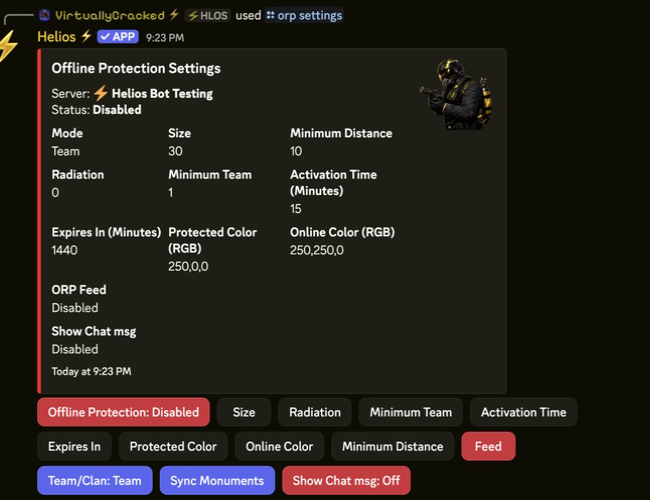
Commands or Controls
/orp settings server:"<SERVER>"
/orp list server:"<SERVER>"
/orp wipe server:"<SERVER>"
/orp wipe server:"<SERVER>" user:"<DISCORD USER>"
/orp wipe server:"<SERVER>" gamertag:"<LEADER NAME>"
Want raiding limited to set hours, or ORP paused on a schedule? See Scheduled Raid Protection (SRP) & ORP Schedules.
Settings Reference
Current defaults in code:
Size:30Minimum Distance:10Radiation:0Minimum Team:1Activation Time:15Expires In:1440Protected Color:250,0,0Online Color:250,250,0Mode:TeamShow Chat msg:On
Offline Protection
Turns the ORP system on or off for that server.
Enabled: players can create and use ORP zonesDisabled: Helios ignores the ORP player flow on that server
Team/Clan Mode
Controls who Helios tracks for ORP status.
Team: ORP follows in-game Rust team membershipClan: ORP follows Helios clan membership instead
Use Clan mode only if your clan setup is already clean. In clan mode, every clan member must have a linked in-game account before that clan can create ORP.
Size
Controls the ORP zone radius used when Helios creates the zone.
- Larger size = more base area covered
- Smaller size = tighter protection area
This setting also updates existing ORP zones when changed.
Minimum Distance
Controls how close a newly placed ORP zone can be to another ORP zone.
- Lower value = easier placement in crowded areas
- Higher value = more spacing between ORP zones
If a player tries to create a zone too close to another one, Helios blocks it.
Radiation
Controls radiation damage applied while a zone is in the Protected state.
0= no radiation- Higher values = more radiation pressure inside the protected zone
Radiation is removed again when the zone returns to Online.
Minimum Team
Controls the minimum number of tracked members required before a zone can be created.
- In
Teammode, this means minimum team members - In
Clanmode, this means minimum clan members
If the player group is below this value, Helios refuses the ORP request.
Activation Time
Controls how many minutes Helios waits after everyone goes offline before ORP activates.
0= protection can move fromOnlinetoProtectedimmediately through the pending check- Higher values = longer delay before protection starts
This does not move an existing zone. It changes when protection begins.
Expires In
Controls how many minutes a zone stays protected before Helios deletes it.
- Shorter value = ORP ends sooner
- Longer value = protection lasts longer
This is a hard expiration. Once the timer is reached, Helios removes the zone.
Protected Color
Controls the zone color used while the zone is Protected.
Format must be R,G,B using numbers from 0 to 255.
Example:
250,0,0
This setting updates existing ORP zones when changed.
Online Color
Controls the zone color used while the zone is Online.
Format must be R,G,B using numbers from 0 to 255.
Example:
250,250,0
This setting updates existing ORP zones when changed.
Feed
Sets the Discord channel that receives ORP feed messages for that server.
With a feed channel selected, Helios can post:
- zone created messages
- ORP status changes
- ORP zone activity updates
Pressing Feed again when one is already set removes the channel.
Show Chat msg
Controls the zone chat-message flag Helios applies to ORP zones.
Simple rule:
On: zone chat messaging stays enabledOff: zone chat messaging stays disabled
This setting updates existing ORP zones when changed.
Sync Monuments
This re-runs Helios' built-in monument zone adjustment pass for that server.
Inference from source: this is used to reapply known monument zone sizes after startup, plugin changes, or map-related changes. It is not a player ORP placement button.
Player Creation Flow
Players can start the request in-game or through /actions. They must still be online on the chosen game server; the Discord menu does not bypass leadership, access, spacing, or placement checks.
Basic Flow
- The player uses the server's ORP quick-chat trigger.
- Helios checks whether the player is eligible to create a zone.
- Helios sends a Yes/No confirmation message.
- The player stands in the center of the base and confirms.
- Helios creates the zone at that location.
What Helios Checks First
Before creating a zone, Helios checks that:
- ORP is enabled on that server
- the player is the leader of the tracked team or clan
- the team or clan meets Minimum Team
- in
Clanmode, all clan members are linked - the placement is not too close to another ORP zone
- the player position can be read successfully
Replacing an Existing Zone
If the leader already has an ORP zone, Helios does not blindly create a second one.
Instead:
- Helios warns the player that a zone already exists.
- The player confirms whether they want to replace it.
- Helios deletes the old zone and creates a new one at the new position.
If your server setup maps different quick-chat slots for ORP, use your actual mapped trigger in player instructions.
Reviewing Zones
Use /orp list server:"<SERVER>" to review the current ORP zones on a server.
The zone list shows useful details such as:
- zone name
- leader
- tracked team or clan ID
- member count
- current status
- activation or expiration timing when applicable
This is the fastest way to verify whether ORP actually created a zone and what state it is currently in.
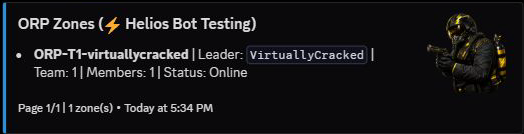
This test zone is Online, so offline protection is not active. The screenshot is a saved command result, not a continuously updating live panel.
Wiping Zones
Use /orp wipe when you need to remove ORP zones.
You can wipe:
- every ORP zone on a server, or
- only the zone(s) for one specific leader
Full Wipe
/orp wipe server:"<SERVER>"
Wipe One Leader By Discord User
/orp wipe server:"<SERVER>" user:"<DISCORD USER>"
This uses the linked gamertag for that Discord user.
Wipe One Leader By Gamertag
/orp wipe server:"<SERVER>" gamertag:"<LEADER NAME>"
Wipe behavior:
- Helios shows a confirmation prompt.
- Staff confirm the wipe.
- Helios deletes the matching ORP zone records and live zones.
- Helios verifies the result with a follow-up zone check.
Common Issues
Problem
Player uses the ORP trigger and nothing happens.
Likely Cause
ORP is disabled, the server is not premium, or the wrong trigger is being used.
Fix
Check /orp settings, confirm ORP is enabled, and verify the player is using the correct ORP quick-chat trigger for that server.
Prevention
Test the full player flow after every wipe or trigger change.
Problem
Player gets blocked from creating a zone.
Likely Cause
They are not the tracked leader, they do not meet Minimum Team, or the zone is too close to another ORP.
Fix
Check the current ORP mode, confirm leadership and member count, then retest from the center of the base with enough spacing from nearby ORP zones.
Prevention
Document your live ORP rules for players so they know the leader and member requirements.
Problem
Clan ORP will not create.
Likely Cause
One or more clan members are not linked in Helios.
Fix
Link every clan member first, then try again.
Prevention
Require linking as part of clan setup before enabling clan-based ORP.
Problem
Protection never turns on.
Likely Cause
A tracked member is still considered online, or the activation timer has not finished yet.
Fix
Check /orp list and the ORP feed to confirm whether the zone is Online or Pending, then wait out the activation time.
Prevention
Use a realistic activation timer and test with a clean offline scenario.
Problem
Protection ends sooner than expected.
Likely Cause
Expires In is set lower than intended.
Fix
Increase Expires In in /orp settings.
Prevention
Set the expiration window intentionally and note it in your server rules.
Tips / Best Practices
- Start in
Teammode unless you already maintain clan links correctly. - Keep one staff-only ORP feed channel for setup testing and incident review.
- Test one full create -> pending -> protected cycle before announcing ORP to players.
- Use moderate zone sizes first, then expand only if real bases are clipping outside protection.
- Keep Minimum Distance high enough to reduce base-overlap abuse.
- Only add radiation if you deliberately want protected zones to be hostile to stand in.
- Re-run Sync Monuments after map-related changes if ORP placement starts behaving oddly near monuments.