Helios Rust Console Bot Documentation
Staff Permissions & Roles
Give trusted moderators selected Helios commands without making them Discord administrators.
- Last reviewed
- Maintained by
- Helios RCE
Use Dashboard → Discord → Moderation → Set Mod Roles to choose which Helios commands each staff role can use.
Add a staff role
- Choose an existing Discord role under Add Moderator Role and click Add Role.
- Expand that role's card.
- Check the command groups the role needs.
- Click Save Commands.
New roles start with no commands allowed. Adding the role alone does not give command access.
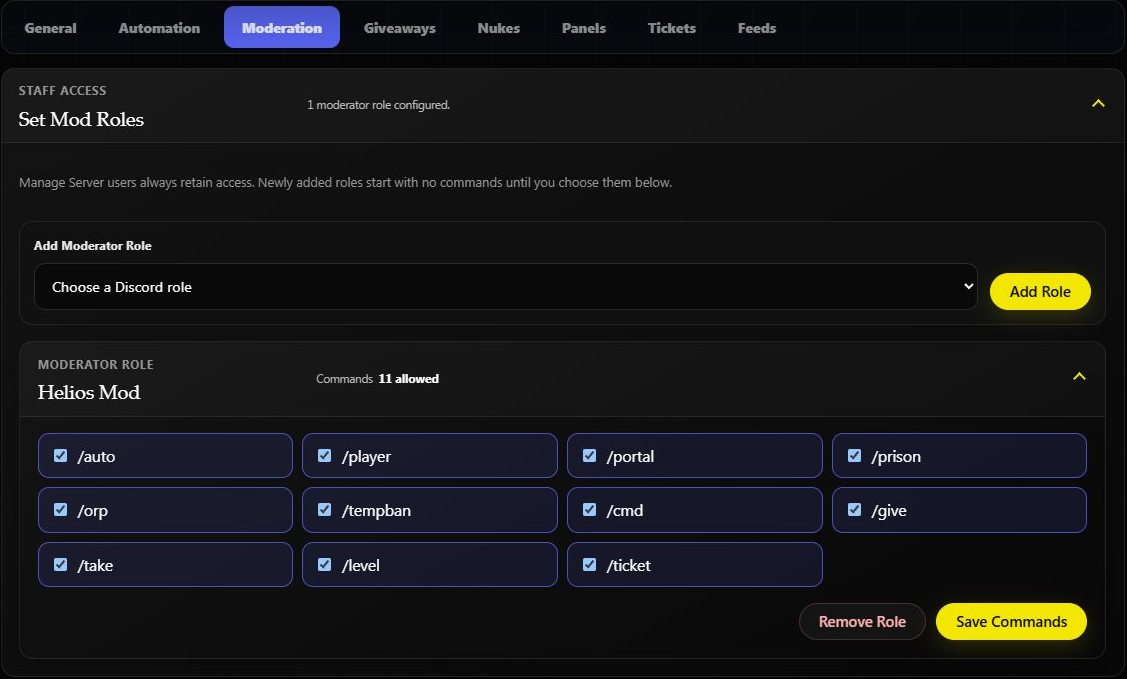
The testing server above has every listed group selected. For a smaller support team, select only the groups its members need.
What the checkboxes allow
Available groups are /auto, /player, /portal, /prison, /orp, /tempban, /cmd, /give, /take, /level, and /ticket.
A group can include powerful actions: /cmd runs server commands, while /give and /take change player rewards. Individual actions can still require their own permissions or Premium.
Members with Manage Server retain their normal Helios admin access. These checkboxes delegate supported Discord commands; they do not grant Discord Administrator or general website dashboard access.
Ticket staff are separate
Use Ticket Mod Roles to decide who can see and answer private tickets. Mention Roles controls who is pinged; it does not grant ticket access.
If access is missing
- Confirm the member has the selected Discord role.
- Check the command box and click Save Commands.
- Check any extra requirement shown by that command.
- For website access, use Refresh Discord in account settings after changing Discord permissions.