Helios Rust Console Bot Documentation
Temporary Bans and Early Unbans
Restrict a player from the game, ORP, or TP Home for a set time, and lift the right restriction early.
- Last reviewed
- Maintained by
- Helios RCE
Use a temporary ban when a player should lose access for a set time. Choose the correct Rust server and restriction before submitting.
Creating a temporary ban requires Premium on that Rust server and Manage Server permission, or a moderator role allowed to use /tempban. Early unbanning uses the separate /player moderator permission.
Choose the right restriction
| Ban type | What it restricts |
|---|---|
| Ban From Game | Access to the selected Rust game server |
| Ban From ORP | Use of Offline Raid Protection on that Rust server |
| Ban From TP Home | Use of TP Home on that Rust server |
A feature-only ban is not a game ban. None of these bans a member from your Discord community. They apply to the named gamertag on the selected Rust server, not every server you run.
Use the dashboard
Open Manage Server → Player Tools → Linked Players, find the player, and check their linked gamertag.
- Expand Player Management → Temporary Ban.
- Choose Ban from.
- Enter Duration in minutes. For example,
120means two hours. - Write the required Reason.
- Choose whether to Show reason in game.
- Click Temp Ban, review the confirmation, then choose Confirm Action only when everything is correct.
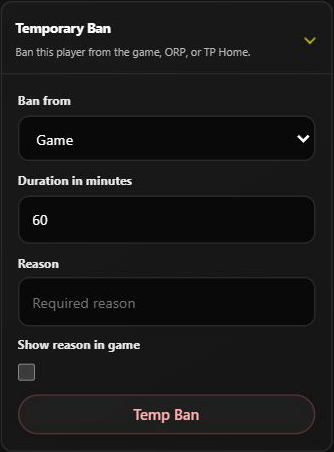
The screenshot shows the untouched form. No ban was created.
The dashboard uses minutes. Discord separates days, hours, and minutes.
Use Discord instead
/tempban server:"EU Main" gamertag:"PlayerName" ban_type:"Ban From TP Home" reason:"Repeated teleport abuse" show_reason:False hours:2
Choose the server and ban type from Discord's suggestions. Submitting this command applies the request without a second confirmation screen.
- server, gamertag, ban_type, reason, show_reason are required.
- Add at least one duration: days, hours, or minutes. Leaving all three blank does not create a default ban.
- Combine them when needed, such as
days:1 hours:12. - Discord accepts days from 0–3650, hours from 0–23, and minutes from 0–59. The combined duration must be at least one minute.
- Reasons can be up to 500 characters.
show_reason:False hides the reason from the in-game announcement. It does not hide it from the staff-facing Discord ban response. Use a suitable staff channel and avoid putting private player information in the reason.
Check the result
A successful response names the player, ban type, server, and end time.
Temp Ban Queued means the request was saved but could not yet be applied. It is not proof that a game ban reached Rust. Helios retries while the original ban window is still open; the timer does not start over when the connection returns. If the window ends before the ban can be sent, Helios expires the unsent request.
Do not submit duplicate bans just because the connection is down. Check the response and server connection first.
Immediate unban
To end a restriction early:
/player unban server:"EU Main" gamertag:"PlayerName"
Choose the active ban from autocomplete. A player can have more than one restriction; pick the correct ban type. If several records match the typed name, Helios asks you to use autocomplete.
This command clears one selected temporary ban, not every ban for the player. Game unbanning also needs a working connection to send the change to Rust. It is not a general remover for unrelated permanent game bans.
On the dashboard, open Player Management → Unban, select the Active ban, click Unban Player, and review the confirmation.
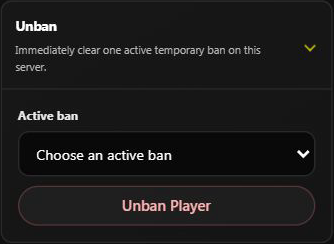
This player has no active temporary ban to choose, so the action is unavailable. No ban was lifted.
Automatic expiry
Helios checks for restrictions whose time has ended. Game-ban removal may be delayed while the Rust connection is unavailable, and Discord notices depend on Helios being able to post in the original command channel.
Expiry or early unbanning removes this restriction; it does not override other bans, missing roles, or disabled ORP/TP Home settings.