Helios Rust Console Bot Documentation
How to Create and Use Zones in Rust Console
A plain-language walkthrough for zone location, shape, rules, messages, saving, and safe upkeep.
- Last reviewed
- Maintained by
- Helios RCE
A custom zone changes the rules in one part of your map. Start with one clearly named area rather than changing every zone at once.
You need a connected game server and Manage Server in Discord. The Discord /zone panel is Free; the dashboard editor requires Premium for that game server.
1. Decide what the area is for
Decide whether players should be able to fight, take NPC damage, build, and damage structures. These are separate choices: turning building off does not also turn building damage off.
Zones are not Discord-role entry locks. A "staff zone" name or message does not prevent non-staff from walking inside. ORP is a different protection system.
2. Open the correct game server
On the website, open Manage Server → Zones → Create Zone. In Discord, run the command below and choose Add:
/zone server:"<SERVER>"
Select your actual server from the suggestions. Changes are for that game server, not every game server in your Discord.
3. Set the location and shape
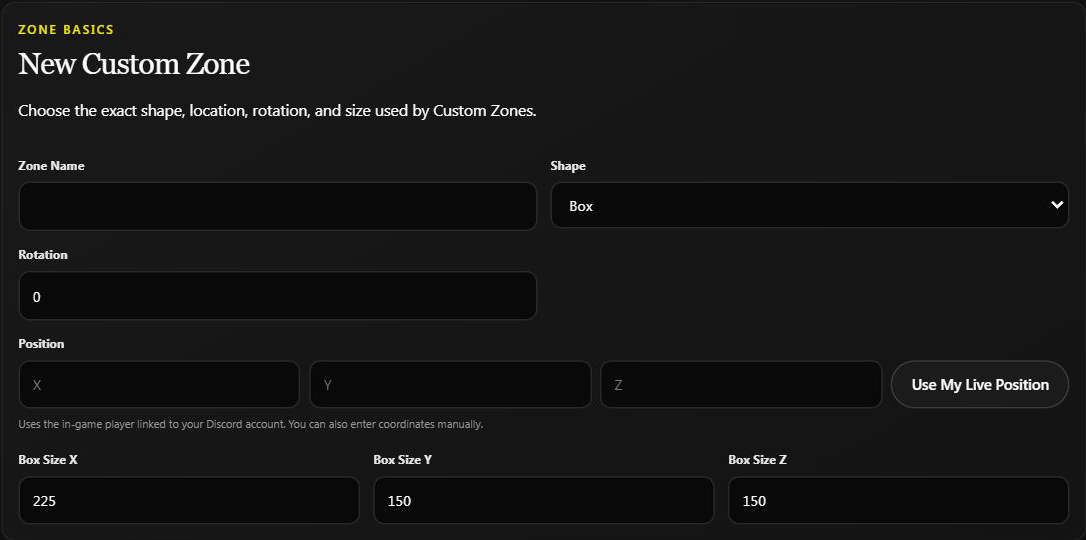
Give it a unique name, such as Trading Area.
- Box: enter the three size values and the angle you want.
- Sphere: enter its radius; rotation is fixed at
0. - Position: on the dashboard, enter X, Y, and Z or choose Use My Live Position. Capture uses the player linked to your Discord account, who must be online on this game server.
Default sizes are starting values, not a recommendation for your map. Check the height as well as the ground footprint.
4. Choose the rules
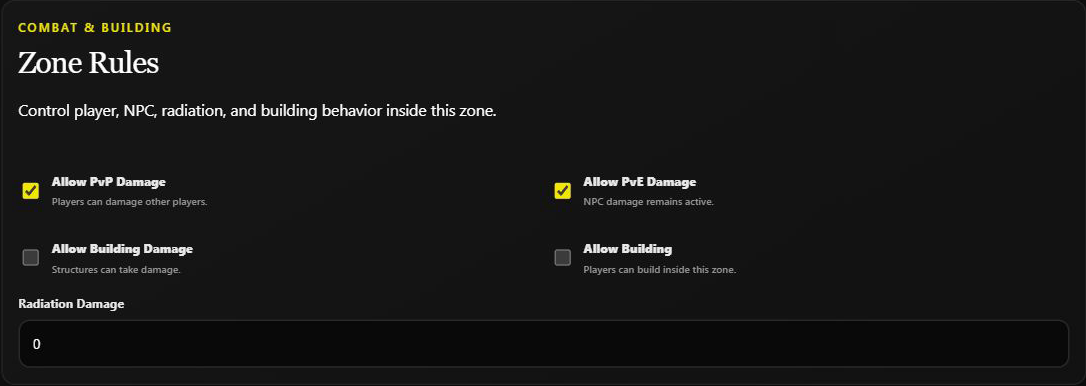
For a peaceful trading area, turn Allow PvP Damage, Allow Building Damage, and Allow Building off, and leave Radiation Damage at 0. Decide separately whether NPC damage should remain active.
For an arena, allow PvP and choose the building and NPC rules the event needs. See practical examples.
5. Make the boundary clear
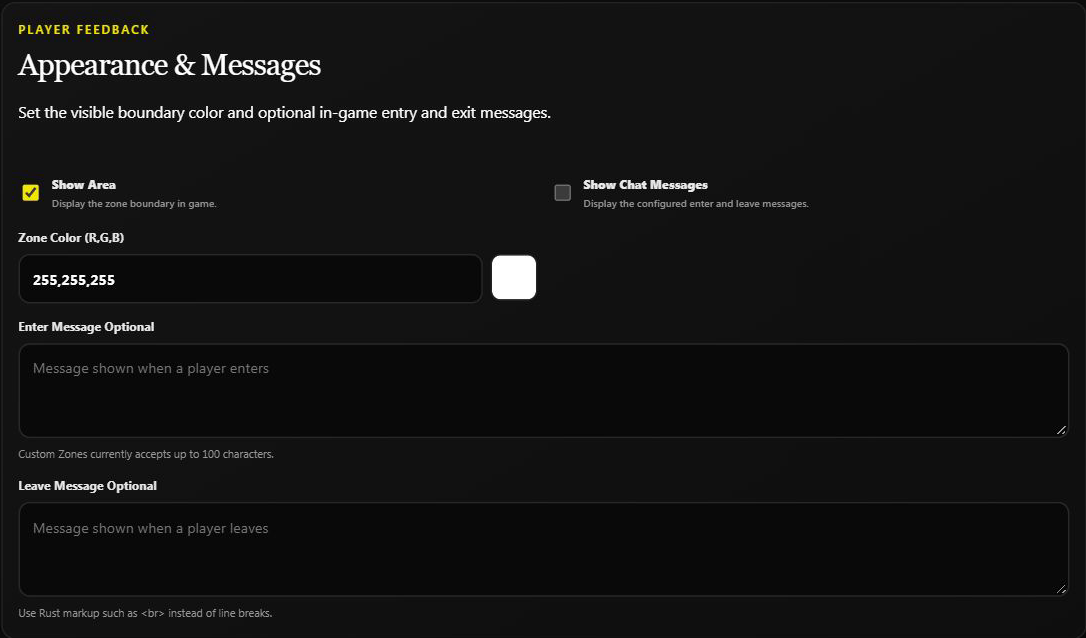
Enable Show Area for a visible boundary. Choose a color players can spot against the terrain.
Entering a message alone does not enable it: turn Show Chat Messages on too. Keep dashboard enter/leave messages within 100 characters. Use <br> for a line break rather than pressing Enter inside the message.
Example wording:
Enter: Trading area: no PvP, no building.
Leave: Leaving the trading area. Normal server rules apply.
Messages describe your rules; they do not enforce a rule you forgot to switch off.
6. Create, then review
Create Zone submits the draft to the live game server. On the dashboard, find it under Existing Zones, use search if needed, and expand it to read its settings.
Do not create the same zone again if a reply fails. Use Refresh Live Zones or Discord Refresh to see whether the first request took effect.
7. Know when edits save
| Interface | When a change goes live |
|---|---|
| Dashboard fields | After Save Zone. |
| Dashboard Enabled/Disabled | Immediately; it does not wait for Save Zone. |
| Discord Edit panel | Each submitted field or rule toggle applies immediately. |
| Manage All | Applying radiation or a Discord bulk toggle changes all affected non-ORP zones immediately. |
Backing out does not undo a change already sent. Copy old values first if you may need to restore them. If another admin changed the zone after you opened it, refresh and review before saving again.
Use the full zone guide for safe renaming and bulk-scope warnings.
8. Check and maintain the area
Read the saved name, shape, position, size, enabled state, and rules. When someone is in-game, walk the boundary and check messages. Keep deliberate damage/building tests on a separate testing server.
After a map wipe, re-check the location against the new terrain. Do not assume a zone is still correctly placed—or that it survived—just because staff notes list its old name.
If behavior seems inconsistent, check overlaps, enabled status, height, position, and each relevant rule before changing unrelated settings.