Helios Rust Console Bot Documentation
Rust Console Shop and Market Setup Guide
Owner guide for Rust Console shop bot workflows, product catalog setup, inventory, and market controls in Helios.
- Last reviewed
- Maintained by
- Helios RCE
Overview
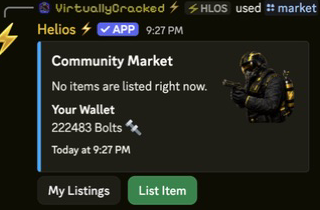
Market and Shop combine category/product management, player inventory (/bag), and market trading (/market).
Build the shop from the dashboard
This Shop uses your community's in-game currency. For real-money products, use Helios Store.
- Open Shop → Add Category. Set its name, display order, and optional required role.
- Use Quick Add → Kit or Rust Item, or choose Other Product for the other reward types.
- Select the category and actual kit, item, or reward. Give it a clear player-facing name and price.
- Set Sell on, optional Required Discord role, and cooldowns in minutes.
- Check whether the product should go into
/bagor be used immediately from/shop. - Save, then check the category in Discord with
/shop.
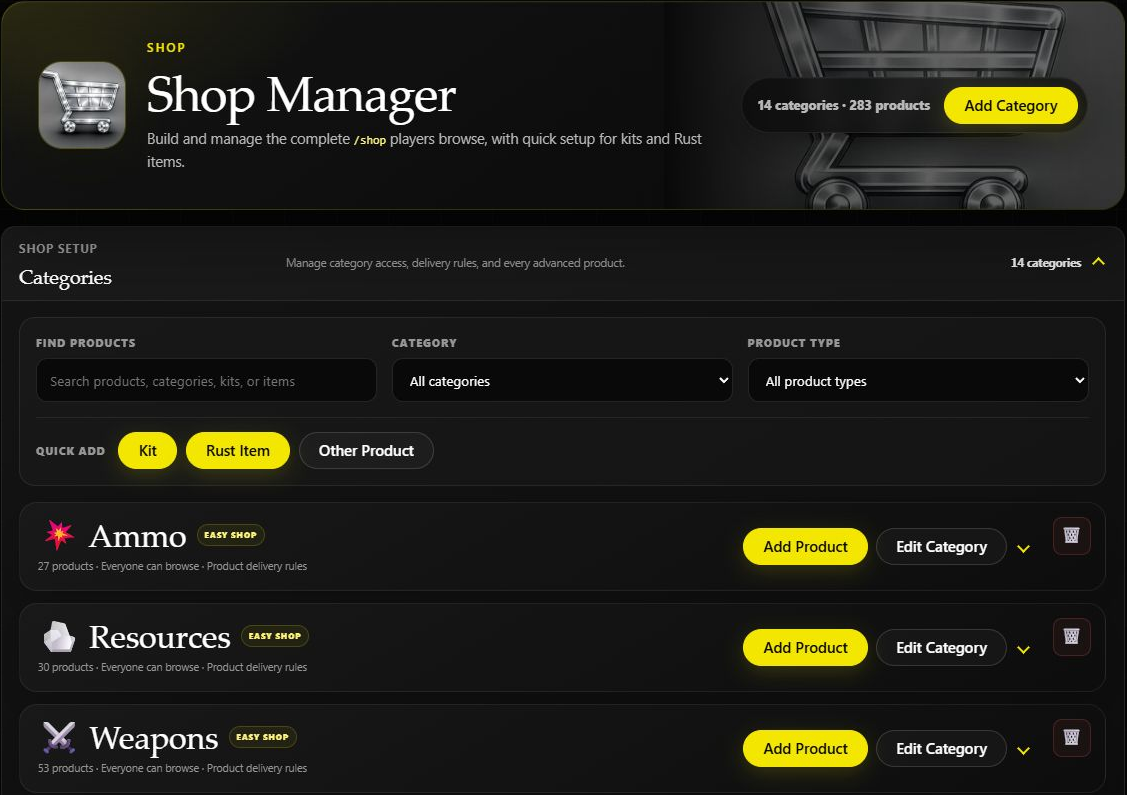
Example: Sell a saved Starter kit for 500 coins, with a 60-minute user cooldown. Limit it to the intended game server. Leave immediate use off if players should claim it later from their bag.
Check the player delivery flow
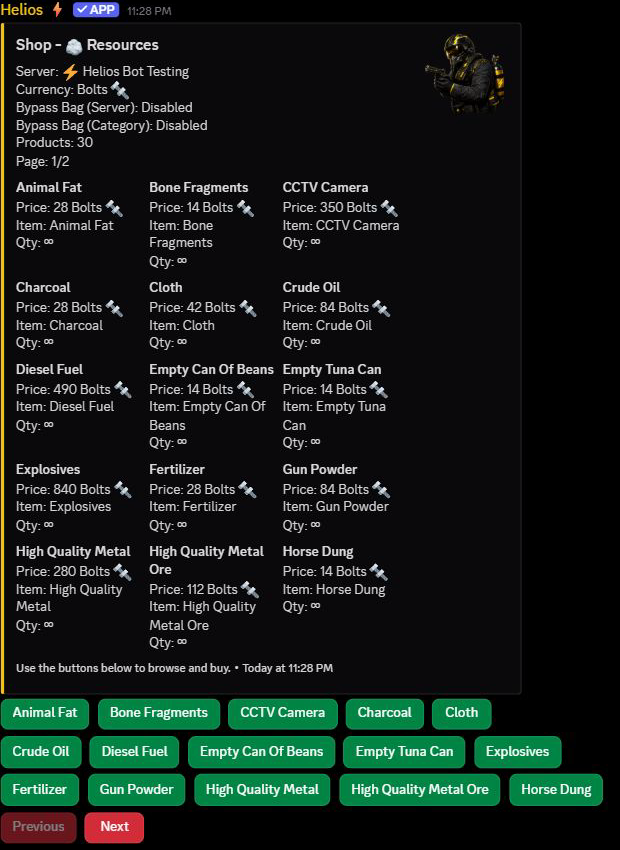
A player runs /shop and chooses both server and category. Selecting a fixed-quantity product can purchase it immediately; there is not always a separate confirmation. Choose-your-quantity products open a form, where Submit buys the chosen amount.
Bag products are used later in /bag on an eligible server. Immediate-use products run at purchase instead. For in-game rewards, test with a linked player online on the intended server.
See Buying from the In-Game Shop and Your Bag and Items for player walkthroughs.
Quantity and price
For fixed bundles, Price buys the entire saved quantity. With Let the buyer choose a quantity enabled, Price is per item and multiplied by the buyer's amount. A 1000-wood bundle priced at 50 costs 50; buyer-chosen wood priced at 2 costs 2000 for 1000 wood.
Bag space and immediate use
Check Bypass Bag on the server, the category's bypass setting, and the product's immediate-use option. Any enabled setting can make eligible products run at purchase rather than save for later. Keys and chests still use the bag flow.
Bag capacity is community-wide, with optional individual player limits, not a separate limit per server. See Bag Capacity.
If a product is missing, check category and product role restrictions, Sell on, and the server's Shop toggle. If delivery fails, check the actual kit/item and server connection before granting a replacement.
Player market and changing shop prices
The Player Market guide covers saved bag items sold by other players. Market purchases use Wallet currency, deliver to the buyer's bag, and can happen immediately from the item's button. Listing an item removes it from the seller's bag until sold or returned; it does not pay the seller up front.
Market is a community-wide toggle, separate from each game server's Shop switch. Listings expire after 24 hours, and the current limit is 19 active listings across the community.
Dynamic Shop Pricing changes eligible shop prices separately for each game server. It does not change player-set market prices. Choose the intended server when reviewing a product's current price.
Role access and role rewards
A category's required role and a product's required role are separate. If both are set, a buyer needs both. The granted role on a Role product is the reward, not an access requirement.
Normally, a Role product is used from /bag before the role is granted. An applicable immediate-use setting can grant it at purchase instead. Standard Role products do not expire automatically. See Shop Role Requirements and Role Rewards before setting up a VIP section or selling a pass.
Video Tutorials
Shop Setup
Easy Shop Setup
Keys & Chests
Requirements
- Economy configured (
/economy,/set currency) - Shop and Market toggles enabled in
/settings server - Linked accounts for wallet/bag flows
- Premium for market and expanded limits
Setup
- Enable Shop and Market in
/settings server. - Create category structure with
/category add. - Add products with
/product add,/product add-item, or/product add-cmd. - Validate player flow in
/shopand/bag. - Validate listing/purchase behavior in
/market.
Commands or Controls
/settings server
/category add|edit|remove
/product add|add-item|add-cmd|edit|remove|info|cooldown-reset
/shop
/bag
/market
/set inventory-limit
Chest and Treasure System
Chest and Treasure controls are part of the premium inventory ecosystem and are used for case-battle and loot reward flows.
For a player-facing example of a chest and matching key opened through /bag, see Treasure & Keys. Opening consumes the chest and key and puts the rolled reward in the player's bag.
Recommended Rollout
- Create chest types first with
/chest add. - Add weighted treasure rewards with
/treasure add. - Validate reward pools with
/treasure list. - Run a controlled test case battle with
/battle chest. - Publish drop-rate policy to staff before public rollout.
Chest and Treasure Commands
/chest add|edit|list|remove
/treasure add|edit|list|remove
/battle chest
Guardrails
- Treat high-value rewards as approval-gated changes.
- Keep chest images and names consistent with your category naming conventions.
- Re-test weights after each major economy change or wipe.
Example Use Case
/category add name:"Weapons"
/product add-item category:"Weapons" name:"Pistol" item:"pistol.revolver" price:250 server:"US Main"
/shop category:"Weapons" server:"US Main"